






2015 COMAND review

Thread Starter
Junior Member
Joined: Feb 2015
Posts: 21
Likes: 8
2015 COMAND review
Over the years, I've benefited greatly from this forum, so I hope to return the favor a bit by posting a detailed review of my 2015 E400 previously. I've extracted the COMAND section in this separate thread. I hope it's all useful to prospective and new owners.
The Car:
2015 E400, Lunar Blue Metallic, Silk Beige Leather
Sport Package, Adaptive Lighting Package
Premium, Keyless Go
Ventilated Seats, Active Multi-contour Seats
Driver Assistance Package, Parking Assistance Package
Coming from a 2006 BMW 550i Sport with Active Roll Stabilization
COMAND OVERVIEW AND TIPS
As mentioned in my other posts, the system is perfectly suitable for basic functions, and no less intuitive than most similar auto systems (Tesla is the stand-out IMO). There are some novel and unique functions. In my opinion, the system is neither good enough nor bad enough to influence the purchase decision. As such, I’ll focus on observations that will help new owners save time in adapting to the system, but I will say COMAND has a habit of snatching defeat from the jaws of victory.
Here are some of the system’s features/shortcomings: excellent voice recognition once you train it a bit, but this is the only way to input NAVI addresses on the move; the screen is small but very sharp with good color palettes; NAVI traffic info requires a monthly fee (free on BMW, Tesla, amongst others); no ability to activate Siri from the steering wheel or see text messages automatically in the Instrument Cluster; no heads up display available; excellent ability to import huge music libraries; push-button easy-line-of-site access on the dashboard (rather than center console) to critical functions, e.g. NAVI. Bonus: the CD player also plays DVDs when the car is in Park. We keep a children’s movie in the CD player in case of an “emergency.”
I suggest new owners do the following immediately:
- Eliminate many of the default points-of-interest (POIs) to clean up the NAVI view
- Turn off audible updates of traffic conditions (way too frequent in urban areas)
- Find the “User Manual” under the Globe icon in the upper right of the COMAND System screen as this resource is much more comprehensive than the print booklet
- Presuming you’re an iPhone and prioritize accessing media on your phone, get an extension cord so your phone can rest near the cupholder area while connected to the Media Interface inside the center armrest storage, thereby also enabling “Hey Siri” access
- Unless some offering is crucial to you, forget about MB Apps which are painfully slow to start up, and seem like a pot-shot at a “recurring revenue model” that charges a monthly fee.
Some insights on phone/media functions that will hopefully assist you in starting with the configuration that’s right for you:
- If phone functionality is of primary concern, the Bluetooth connection works consistently (we use an iPhone 5s and 6) and speakerphone quality is good enough for client calls at highway speeds. In this mode, Siri is accessible through the car speakerphone by manually pressing the phone’s Home button. Phone media will not stream, although strangely Google Maps and Waze audio will come through the car speakers, but not Apple Maps or other native app audio.
-If a mainly “static” music library is important to you, I recommend you download your library to a memory card (e.g. an SD Card) and leave it plugged into the Memory Card interface on the dashboard. This gives you access independent of phone set-up and you can select music via COMAND. COMAND handles nested folders nicely, so I recommend you consolidate your music into folders (by genre, for example) for easy access.
- If streaming audio or protected media (e.g. most audio books) are important to you, plugging your phone into the Media Interface is likely optimal. The 10GB Music Register, Bluetooth Audio, Media Interface, and the USB Interface are described below.
The Music Register is a defeat-from-the-jaws-of-victory feature: media on this 10GB driver is easily searchable (including decently so from Voice Command), is intuitively accessible, and can’t be moved/stolen like the Memory Card, but here’s the catch: the ONLY way to get media on to the Register seems to be by ripping tracks from a CD inserted into the dashboard slot. In other words you would need to burn your music library onto CDs, then import them at the rate of several minutes per CD onto the Register. I did this with a handful of CDs that my wife appreciates, making the Music Register her personal, uncluttered media repository. Beyond that, it’s just too much of a hassle to populate the Music Register.
Bluetooth Audio delivers the audio through the car speakers but you have to select media on the phone — they’re not accessible through COMAND. Also, I find that I have to manually reconnect Bluetooth Audio almost every time, even though the Bluetooth phone pairing takes place automatically. Siri remains accessible through the car speakerphone via manual activation using the phone’s Home button. Every audio source I’ve tried gets delivered through the speakers (native apps e.g. Podcasts, as well as third party apps such as Google Maps and The Economist spoken articles).
The Media Interface and USB Interface are both accessible via supplied outlets and cables in the center console armrest. You can plug your phone into either connection, while the USB Interface can also be used in the same manner as the Memory Card Interface to plug in a memory stick. Both will charge your phone and will enable “Hey Siri” hands-free access (which requires your iPhone be plugged in). Neither interferes with phone functionality via BlueTooth. The Media Interface allows the use of COMAND to select media from your phone’s native apps (including Podcasts, but not iTunes Radio), but activating Siri can cause stability problems which require rebooting the phone. USB Interface doesn’t allow media selection via COMAND (you need to directly manipulate the phone) but causes fewer stability problems when accessing Siri. One hint: mute media audio via COMAND, then access Siri. This seems to reduce occurrences of instability.
General tip: any media on the Music Register, on a Memory Card or on a USB stick needs to be “unprotected” to be accessible. Otherwise, the media needs to be on an authorized device, i.e. you must connect your iPhone via an interface or via BlueTooth. Generally, iTunes music files are unprotected. However, for tracks purchased more than a couple years ago, you may have to delete the tracks and re-download them via iTunes Match — this will make sure your library files are in “unprotected” formats. Copy your music files onto an SD card or USB stick, organize the files into folders, and they’ll be readable by the various COMAND interfaces. Note audio book files are almost always protected, so you need to stream them from your phone via one of the noted connections.
Two final notes on media: Voice Command can search for music by name, artist, etc. for any files that are accessible via the Music Register, Memory Card, USB stick or Media Interface but not files that are on a phone connected via BlueTooth Audio or USB Interface. A defeat-from-victory stumble: the excellent Voice Command can’t understand “FM 88.5”: you need to first ask for radio mode and then ask for the station. This is about 7 years behind BMW.
For Navigation, remember that to display soft-key menus on the screen, you need to press the COMAND controller. The RPT soft-key at the bottom of the screen repeats the last audible navigation instruction. The Destination soft-key allows you to input waypoints and record your route amongst many other things. A great feature is the ability to display a Google Street View of the destination which you can scroll around with the COMAND controller. Defeat-from-victory alert: this is only accessible in the destination input screen and never again once you’ve started navigation. Too bad, as it’s one function that might have justified at least part of the optional monthly subscription fees. Also inexplicable is the inability to use addresses from the Phone Book (note the Tesla can access your calendar for navigation purposes).
The Phone functionality works as expected. A useful feature is the ability to program the keypad on the center console for one-touch dialing, e.g. press and hold “9” for 911. The phone number is stored in the car, and so is independent of the connected phone. Also note a feature not highlighted by the manuals: all primary phone functions (“Dial Number”) can be directly accessed via Voice Control regardless of what function the COMAND is currently displaying. Ditto media interfaces (e.g. “FM radio” or “Bluetooth Audio”). This is notable because generally Voice Control offers choices that are a subsidiary of the displayed function, so for example “Enter Destination” is not recognized unless COMAND is in NAVI mode.
After a couple weeks, the various controls and functions become natural to use, somewhat surprising because the logic and division of labor between COMAND hard- and soft-keys, the Instrument Cluster (“IC”) display and steering wheel controls are a mess. For example, the IC has a number of screens which really should be part of the Settings menu in the COMAND display — why do I need to use steering wheel buttons to scroll left or right past 2 to 3 screens of settings-type info to get to the far more critical next-turn NAVI instructions? Also, the steering wheel buttons don’t default to controlling the selected media. For example, if I switch to radio via Voice Command or the COMAND display, I also have to manually select the media screen on the IC to be able to manipulate radio station pre-sets. Even if I were viewing NAVI next-turn instructions in IC, the steering wheel buttons are inert in that mode so I don’t see why they can’t select stations/media tracks. Another gripe: why is “Phone” one of the IC display modes you have to scroll past even when no phone calls are active? Yes, you can go through your phone book on the IC to select a number to dial, but how many people have a phone book small enough to make this practical? To give credit where it’s due: the dedicated phone buttons, including a mute (!), on the right side of the steering wheel, is a real plus.
MB has done a great job of placing physical buttons within eye-sight and easy reach. However, the relative placements and labeling make no sense and slow down the learning curve. For example, on the driver’s side of the COMAND display the following physical keys are present, in order: RADIO (for FM, AM, SAT), DISC (repeated pressing will scroll through media interfaces except those controlled by RADIO), NAVI, TEL, MUTE, SYSTEM, DIAL and HANG UP. The soft keys in the COMAND display are, in order, NAVI, AUDIO (which includes all functions accessible by the RADIO and DISC hard-keys), PHONE, and VIDEO (which only works if there’s a DVD in the CD drive which is otherwise controlled by the AUDIO menu). If this paragraph is hard to read, it’s because it’s hard to write a couple sentences with parallel logic, as the logic is missing in the layouts. I can understand some of the re-segmentation between RADIO hard keys and AUDIO soft-keys, but why change the ordering, i.e. why is NAVI third in the hard key sequence but first in the soft keys? Why is it a “TEL” hard key but a “PHONE” soft-key? And why are the MUTE, SYSTEM, DIAL and HANGUP physical keys clustered together with the TEL physical key above them? Last gripe-y example: the SYSTEM button pulls up a screen where the soft-keys I described above are listed at the top. Along the bottom, you have SETTINGS which does what it says; TIME which sounds like it should activate a clock function, but rather pulls up a clock settings menu because a clock is already displayed; 360 CAMERA which actually activates the camera function with no settings available; and SEATS, which pulls up a menu of combined settings and function activations.
The Car:
2015 E400, Lunar Blue Metallic, Silk Beige Leather
Sport Package, Adaptive Lighting Package
Premium, Keyless Go
Ventilated Seats, Active Multi-contour Seats
Driver Assistance Package, Parking Assistance Package
Coming from a 2006 BMW 550i Sport with Active Roll Stabilization
COMAND OVERVIEW AND TIPS
As mentioned in my other posts, the system is perfectly suitable for basic functions, and no less intuitive than most similar auto systems (Tesla is the stand-out IMO). There are some novel and unique functions. In my opinion, the system is neither good enough nor bad enough to influence the purchase decision. As such, I’ll focus on observations that will help new owners save time in adapting to the system, but I will say COMAND has a habit of snatching defeat from the jaws of victory.
Here are some of the system’s features/shortcomings: excellent voice recognition once you train it a bit, but this is the only way to input NAVI addresses on the move; the screen is small but very sharp with good color palettes; NAVI traffic info requires a monthly fee (free on BMW, Tesla, amongst others); no ability to activate Siri from the steering wheel or see text messages automatically in the Instrument Cluster; no heads up display available; excellent ability to import huge music libraries; push-button easy-line-of-site access on the dashboard (rather than center console) to critical functions, e.g. NAVI. Bonus: the CD player also plays DVDs when the car is in Park. We keep a children’s movie in the CD player in case of an “emergency.”
I suggest new owners do the following immediately:
- Eliminate many of the default points-of-interest (POIs) to clean up the NAVI view
- Turn off audible updates of traffic conditions (way too frequent in urban areas)
- Find the “User Manual” under the Globe icon in the upper right of the COMAND System screen as this resource is much more comprehensive than the print booklet
- Presuming you’re an iPhone and prioritize accessing media on your phone, get an extension cord so your phone can rest near the cupholder area while connected to the Media Interface inside the center armrest storage, thereby also enabling “Hey Siri” access
- Unless some offering is crucial to you, forget about MB Apps which are painfully slow to start up, and seem like a pot-shot at a “recurring revenue model” that charges a monthly fee.
Some insights on phone/media functions that will hopefully assist you in starting with the configuration that’s right for you:
- If phone functionality is of primary concern, the Bluetooth connection works consistently (we use an iPhone 5s and 6) and speakerphone quality is good enough for client calls at highway speeds. In this mode, Siri is accessible through the car speakerphone by manually pressing the phone’s Home button. Phone media will not stream, although strangely Google Maps and Waze audio will come through the car speakers, but not Apple Maps or other native app audio.
-If a mainly “static” music library is important to you, I recommend you download your library to a memory card (e.g. an SD Card) and leave it plugged into the Memory Card interface on the dashboard. This gives you access independent of phone set-up and you can select music via COMAND. COMAND handles nested folders nicely, so I recommend you consolidate your music into folders (by genre, for example) for easy access.
- If streaming audio or protected media (e.g. most audio books) are important to you, plugging your phone into the Media Interface is likely optimal. The 10GB Music Register, Bluetooth Audio, Media Interface, and the USB Interface are described below.
The Music Register is a defeat-from-the-jaws-of-victory feature: media on this 10GB driver is easily searchable (including decently so from Voice Command), is intuitively accessible, and can’t be moved/stolen like the Memory Card, but here’s the catch: the ONLY way to get media on to the Register seems to be by ripping tracks from a CD inserted into the dashboard slot. In other words you would need to burn your music library onto CDs, then import them at the rate of several minutes per CD onto the Register. I did this with a handful of CDs that my wife appreciates, making the Music Register her personal, uncluttered media repository. Beyond that, it’s just too much of a hassle to populate the Music Register.
Bluetooth Audio delivers the audio through the car speakers but you have to select media on the phone — they’re not accessible through COMAND. Also, I find that I have to manually reconnect Bluetooth Audio almost every time, even though the Bluetooth phone pairing takes place automatically. Siri remains accessible through the car speakerphone via manual activation using the phone’s Home button. Every audio source I’ve tried gets delivered through the speakers (native apps e.g. Podcasts, as well as third party apps such as Google Maps and The Economist spoken articles).
The Media Interface and USB Interface are both accessible via supplied outlets and cables in the center console armrest. You can plug your phone into either connection, while the USB Interface can also be used in the same manner as the Memory Card Interface to plug in a memory stick. Both will charge your phone and will enable “Hey Siri” hands-free access (which requires your iPhone be plugged in). Neither interferes with phone functionality via BlueTooth. The Media Interface allows the use of COMAND to select media from your phone’s native apps (including Podcasts, but not iTunes Radio), but activating Siri can cause stability problems which require rebooting the phone. USB Interface doesn’t allow media selection via COMAND (you need to directly manipulate the phone) but causes fewer stability problems when accessing Siri. One hint: mute media audio via COMAND, then access Siri. This seems to reduce occurrences of instability.
General tip: any media on the Music Register, on a Memory Card or on a USB stick needs to be “unprotected” to be accessible. Otherwise, the media needs to be on an authorized device, i.e. you must connect your iPhone via an interface or via BlueTooth. Generally, iTunes music files are unprotected. However, for tracks purchased more than a couple years ago, you may have to delete the tracks and re-download them via iTunes Match — this will make sure your library files are in “unprotected” formats. Copy your music files onto an SD card or USB stick, organize the files into folders, and they’ll be readable by the various COMAND interfaces. Note audio book files are almost always protected, so you need to stream them from your phone via one of the noted connections.
Two final notes on media: Voice Command can search for music by name, artist, etc. for any files that are accessible via the Music Register, Memory Card, USB stick or Media Interface but not files that are on a phone connected via BlueTooth Audio or USB Interface. A defeat-from-victory stumble: the excellent Voice Command can’t understand “FM 88.5”: you need to first ask for radio mode and then ask for the station. This is about 7 years behind BMW.
For Navigation, remember that to display soft-key menus on the screen, you need to press the COMAND controller. The RPT soft-key at the bottom of the screen repeats the last audible navigation instruction. The Destination soft-key allows you to input waypoints and record your route amongst many other things. A great feature is the ability to display a Google Street View of the destination which you can scroll around with the COMAND controller. Defeat-from-victory alert: this is only accessible in the destination input screen and never again once you’ve started navigation. Too bad, as it’s one function that might have justified at least part of the optional monthly subscription fees. Also inexplicable is the inability to use addresses from the Phone Book (note the Tesla can access your calendar for navigation purposes).
The Phone functionality works as expected. A useful feature is the ability to program the keypad on the center console for one-touch dialing, e.g. press and hold “9” for 911. The phone number is stored in the car, and so is independent of the connected phone. Also note a feature not highlighted by the manuals: all primary phone functions (“Dial Number”) can be directly accessed via Voice Control regardless of what function the COMAND is currently displaying. Ditto media interfaces (e.g. “FM radio” or “Bluetooth Audio”). This is notable because generally Voice Control offers choices that are a subsidiary of the displayed function, so for example “Enter Destination” is not recognized unless COMAND is in NAVI mode.
After a couple weeks, the various controls and functions become natural to use, somewhat surprising because the logic and division of labor between COMAND hard- and soft-keys, the Instrument Cluster (“IC”) display and steering wheel controls are a mess. For example, the IC has a number of screens which really should be part of the Settings menu in the COMAND display — why do I need to use steering wheel buttons to scroll left or right past 2 to 3 screens of settings-type info to get to the far more critical next-turn NAVI instructions? Also, the steering wheel buttons don’t default to controlling the selected media. For example, if I switch to radio via Voice Command or the COMAND display, I also have to manually select the media screen on the IC to be able to manipulate radio station pre-sets. Even if I were viewing NAVI next-turn instructions in IC, the steering wheel buttons are inert in that mode so I don’t see why they can’t select stations/media tracks. Another gripe: why is “Phone” one of the IC display modes you have to scroll past even when no phone calls are active? Yes, you can go through your phone book on the IC to select a number to dial, but how many people have a phone book small enough to make this practical? To give credit where it’s due: the dedicated phone buttons, including a mute (!), on the right side of the steering wheel, is a real plus.
MB has done a great job of placing physical buttons within eye-sight and easy reach. However, the relative placements and labeling make no sense and slow down the learning curve. For example, on the driver’s side of the COMAND display the following physical keys are present, in order: RADIO (for FM, AM, SAT), DISC (repeated pressing will scroll through media interfaces except those controlled by RADIO), NAVI, TEL, MUTE, SYSTEM, DIAL and HANG UP. The soft keys in the COMAND display are, in order, NAVI, AUDIO (which includes all functions accessible by the RADIO and DISC hard-keys), PHONE, and VIDEO (which only works if there’s a DVD in the CD drive which is otherwise controlled by the AUDIO menu). If this paragraph is hard to read, it’s because it’s hard to write a couple sentences with parallel logic, as the logic is missing in the layouts. I can understand some of the re-segmentation between RADIO hard keys and AUDIO soft-keys, but why change the ordering, i.e. why is NAVI third in the hard key sequence but first in the soft keys? Why is it a “TEL” hard key but a “PHONE” soft-key? And why are the MUTE, SYSTEM, DIAL and HANGUP physical keys clustered together with the TEL physical key above them? Last gripe-y example: the SYSTEM button pulls up a screen where the soft-keys I described above are listed at the top. Along the bottom, you have SETTINGS which does what it says; TIME which sounds like it should activate a clock function, but rather pulls up a clock settings menu because a clock is already displayed; 360 CAMERA which actually activates the camera function with no settings available; and SEATS, which pulls up a menu of combined settings and function activations.
Thread Starter
Junior Member
Joined: Feb 2015
Posts: 21
Likes: 8
Also, In the media settings (lower left hand corner of the COMAND screen showing a particular media source) select “Boost” to partially compensate for the very inadequate amplification of external audio sources.
Thread Starter
Junior Member
Joined: Feb 2015
Posts: 21
Likes: 8
As an aside, you probably know this, but the video will only play if the car is in PARK. You could have a music video DVD in the drive, and COMAND will only play the music while in DRIVE and and then switch on the video when you put the car into Park for example at a red light or traffic jam.
Of course, I'm not suggesting you do this nor should anyone, but I've seen it done.
Thread Starter
Junior Member
Joined: Feb 2015
Posts: 21
Likes: 8
My understanding is that beginning in 2014s, the new C class and the S Class share an updated COMAND, and the other cars were on the traditional system with modest differences amongst the latter in terms of bells and whistles. When I bought my 2015, the same seemed to be true based on what I could see in the dealership.
Trending Topics
MB World Stories
The Best of Mercedes & AMG

8 Oddball Mercedes Ideas That Actually Made it to Production
Verdad Gallardo
Dubai Tuner Gives the Mercedes G-Class An Entirely New Look
Verdad Gallardo
Six Gift Ideas Your AMG Loving Dad or Grad Will Cherish

7 Craziest Things AMG Gas Ever Built
Verdad Gallardo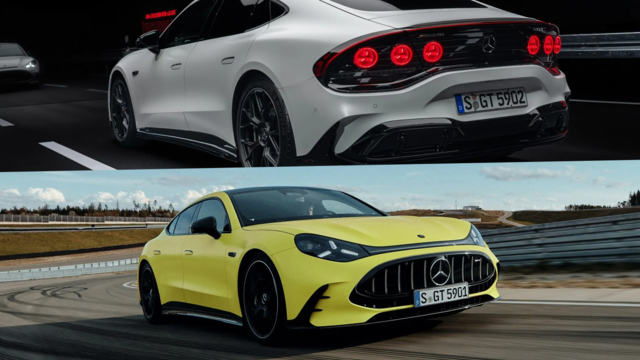
New Electric Mercedes-AMG GT 4-Door Coupe Unveiled: 10 Things You Need to Know
Verdad Gallardo
6 Mercedes Models That Did NOT Age Well (But Are Somehow Still Cool)
Verdad Gallardo
Manual Mercedes? 6 Times Sindelfingen Let Drivers Have All The Fun
Verdad Gallardo
Mercedes SLR McLaren 722 S Is Extremely Rare Example Modified by McLaren
Verdad Gallardo
8 Classic Boxy Mercedes Designs That Have Aged Like Fine Wine
Verdad Gallardo

Member
Joined: Feb 2015
Posts: 75
Likes: 1
[2017 GLS63]
It's been a month since I ran the system through my various test, but I'm pretty sure I loaded a personal (i.e. no copy or read protections) on to the memory card and noted that the file wasn't even visible via the COMAND interface. In other words, the DVD player was the only way to view video files. I have a Peanuts kids DVD in the drive and it plays with no issues.
As an aside, you probably know this, but the video will only play if the car is in PARK. You could have a music video DVD in the drive, and COMAND will only play the music while in DRIVE and and then switch on the video when you put the car into Park for example at a red light or traffic jam.
Of course, I'm not suggesting you do this nor should anyone, but I've seen it done.
As an aside, you probably know this, but the video will only play if the car is in PARK. You could have a music video DVD in the drive, and COMAND will only play the music while in DRIVE and and then switch on the video when you put the car into Park for example at a red light or traffic jam.
Of course, I'm not suggesting you do this nor should anyone, but I've seen it done.
Last edited by BenzEnvy; Mar 13, 2015 at 05:17 PM. Reason: Spelling error.

MBWorld Fanatic!

Joined: Aug 2004
Posts: 1,367
Likes: 3
From: MA
'24 Porsche Macan
That's what I was afraid of. I won't be able to play my collection of digital movies through the memory card (MP4). Is using the media interface an option? I can't try since I don't have a Media Interface Cable. Using the USB port, COMAND doesn't recognize (control) my device - but I guess that is known.

Member
Joined: Feb 2015
Posts: 75
Likes: 1
[2017 GLS63]

Newbie
Joined: Sep 2015
Posts: 2
Likes: 0
2016 GLE400
Anyone having issue with Navigation directions not including the street/road/ave name, and instead only the route number? For example, instead of "Turn left on Main St." it says "Turn left on Route 124"
Any road that has a route number it verbally uses that and does not use its more common name. It does show the common name on the display as the next turn, interestingly enough.
I cannot find any setting that fixes this.
Any road that has a route number it verbally uses that and does not use its more common name. It does show the common name on the display as the next turn, interestingly enough.
I cannot find any setting that fixes this.


