


Android Auto Tutorial

Thread Starter
Super Member
Joined: Nov 2016
Posts: 852
Likes: 132
From: North Carolina
AMG GLE43 Coupe
Android Auto Tutorial
I've been using Android Auto for a few months now. I think I've mastered all of the features. It's actually very straight-forward and intuitive. I was contemplating making an illustrated tutorial for those interested. But first I wanted to see how much interest there is. It would be kind of pointless if we only have two people interested, so I'm taking a poll. How many folks would love to learn how to use AA, but are too intimidated (or busy) to figure it out on your own?

Member
Joined: Jan 2017
Posts: 126
Likes: 5
From: NC
2017 GLE 350 4matic
I honestly have no idea how to use Android Auto. I loaded the app on my previous phone and essentially gave up on messing with it. I would like to know how it works to see if it is something that would be helpful to use. I assume that it operates the same in the GLE350 as it does in the GLE43.

Senior Member
Joined: Nov 2016
Posts: 276
Likes: 26
2017 GLE43 Coupe
I installed it on my Pixel and got it all connected to the car. I could figure out how to use it, I just couldn't figure out what the benefit was over all of the features that I have in the car currently.
One question that I would have that is not so much "tutorial" based, is what am I missing about using AA? I have to think that it offers something over the car. I have to admit also, that I did NOT play with it very long, so I may not have discovered all of the things that it can do...
One question that I would have that is not so much "tutorial" based, is what am I missing about using AA? I have to think that it offers something over the car. I have to admit also, that I did NOT play with it very long, so I may not have discovered all of the things that it can do...
Thread Starter
Super Member
Joined: Nov 2016
Posts: 852
Likes: 132
From: North Carolina
AMG GLE43 Coupe
One question that I would have that is not so much "tutorial" based, is what am I missing about using AA? I have to think that it offers something over the car. I have to admit also, that I did NOT play with it very long, so I may not have discovered all of the things that it can do...
Here are some of the key features of Android Auto:
- With AA, EVERYTHING is voice activated. Even turning on the voice activation feature is done using the voice command "OK Google". If you choose not to, you don't ever have to even look at the display. This is what makes it far safer than the car's standard user interface.
- AA uses the power of Google to find locations. No need to have/recite the exact address. Just say," Navigate to Sunny Hills Park". Google will find the park, display the address and then navigate there. Say, "Find the nearest Starbucks". Because of GPS, Google knows exactly where you are, and will show you all of the nearest stores based on your present location. You can say, "Find the nearest parking lot, airport, hotel, ATM, hospital, police station, etc." You never need an exact street address!
- Google Maps is renowned for having the most up-to-date map database in the world. Even WAZE is powered by Google Maps. They just use their own graphics. Google Maps uses "real time" notifications for traffic, construction, accidents, etc. "Yellow" portions of the road indicate light traffic. "Red" indicates heavy traffic. In-car navigation is NEVER up to date. Think about this for a minute. There are roads and highways being built somewhere in the world EVERY SINGLE DAY. Even if you get the MB map updates yearly, you're still 364 days behind. Besides, Google Maps is free. MB Nav updates will cost you after the first three years of ownership.
- The features of AA are not limited to navigation either. You can say, "What's tomorrow's weather forecast?", "When is the Panther's next football game?", "Play Santana on Spotify", etc.
- Send and receive text messages using only your voice. Just say, "Text Robert". AA automatically finds Robert in your contacts and asks, "What's the message?" You then recite the message. It will read it back to confirm accuracy and then ask, "Do you want to send it or change it?" Say "send it" and off it goes. For privacy, assuming you may not be alone in the car, incoming text messages give you three options. One, you can have them read out loud. Two, you can display the text message for you to read. Three, you can do either of the aforementioned at a later time. AA will also ask if you want to reply any time you get an incoming message.
- Making phone calls is just as easy. Just say, "Call Valerie". AA finds Valerie in your contacts and dials her number. If your contact has more than one phone no., AA will ask, "mobile or home?" But the power of AA doesn't stop there. You don't have to have a number in your contacts to call it. AA uses Google's search capabilities to find the number and then call. E.g. "Call the nearest Pizza Hut", "Call the nearest MB dealer", "Call the nearest public library", etc.
- There's a reason AA does not display your entire contact list. It only shows "Call History" and "Missed Calls". The system is designed for minimal physical interaction. They don't want you scrolling through 300 phone numbers while driving. Besides, there's no need to, since everything is voice activated.
- There are multiple media players you can use in conjunction with AA. You're not limited to Google Play Music. I'm not a big fan of Google Play Music. Via AA, it won't allow you to select music by Artist, Album, Genre or Playlist, although I have found a workaround for this. I would recommend Media Monkey or Rocket Player to play music locally stored on your phone. They both allow you to select music by Album, Artist, Genre, Playlist and Song. Media Monkey also has a "Now Playing" list. This depicts upcoming songs and previously played songs. Want to find the name of a song played four songs ago, no problem. Just scroll back in the "Now Playing" list. You have to download these apps from the Play Store and then set the proper directories where your music is stored. Once that's done, you can now open AA and select the desired media icon. For streaming music, use Spotify, iHeartRadio, TuneIn Radio, Pandora, etc. Try "Scanner Radio" from the Play Store and listen to police/fire calls from all over the country......in your car! Just be aware of data charges with any of the streaming apps if you don't have an unlimited data plan.
- You can use voice commands to not only select an artist or Genre, but to specify which media player you want it to play from. E.g. "Play Steely Dan on Pandora", Play Jazz on Spotify", "Play Jimi Hendrix on iHeartRadio", "Play Classic Rock on Pandora", etc.
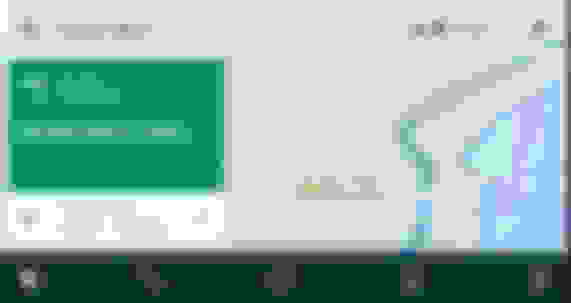
On the AA screen you'll see icons at the bottom. They are: Navigation, Phone, Home, Media and Exit AA. See attached pic. Pressing the "Favorites" button (star) on your MB will also exit AA. This is a quick way of switching back and forth between COMAND and AA. Forget about the "Touchpad". You'll be using the "Controller" knob exclusively to navigate through the buttons on the AA screen on COMAND. "Rotate" clockwise to go to the left. "Rotate" counterclockwise to go to the left. "Slide" the knob straight over to the 9 o'clock position to select a menu (three little lines in the upper left corner). Each screen will have its own menu. "Slide" the knob straight over to the 3 o'clock position to turn on voice activation. But there's no need to ever do this if you use the voice command "OK Google". "Press" the knob straight down to select a feature. "Sliding" the knob to the 12 o'clock and 6 o'clock positions will alternate between the upper display and the AA
virtual buttons.
You can switch back and forth between AA and COMAND any time you like without disconnecting your phone. Just use the MB "Favorites" button. It works both ways too. Want to use your car's radio while using AA to navigate with Google Maps, no problem. Want to use your MB navigation while listening to iHeartRadio through AA, no problem. While still connected to AA, you'll be able to use every feature of COMAND, except the "Media" setting. That's because AA "is" a Media selection.
The first time you connect your phone to the car, use the USB input with the Smartphone Integration symbol. COMAND will ask if you want AA to "Start Automatically". Select "Yes". This way, all you have to do is plug your phone in and AA automatically turns on. If you want to charge your phone and NOT use AA, just use the other USB port or a USB adapter and the 12V socket. You can also use your MB's hard keys (on the dash) to select Radio, Media, Nav & Telephone within AA. So if you press the Nav hard button while in AA, you'll get Google Maps, not MB navigation.

Last edited by GLE43_Sube; Jan 5, 2018 at 11:35 AM.
Thread Starter
Super Member
Joined: Nov 2016
Posts: 852
Likes: 132
From: North Carolina
AMG GLE43 Coupe
Let me know if you need help. Don't forget, if you have music locally stored on you phone, install Media Monkey first.
Trending Topics
Member
Joined: Jan 2017
Posts: 126
Likes: 5
From: NC
2017 GLE 350 4matic
I dont have any music on my phone. Sadly, all my music is still on an iPod touch, but it works well and in the car is just a plug and play.
Downside being, its just another device to grab with its own cord when I run out of the house and want to use it in the car.
Downside being, its just another device to grab with its own cord when I run out of the house and want to use it in the car.
MB World Stories
The Best of Mercedes & AMG
6 Mercedes Models That Did NOT Age Well (But Are Somehow Still Cool)
Verdad Gallardo
Manual Mercedes? 6 Times Sindelfingen Let Drivers Have All The Fun
Verdad Gallardo
Mercedes SLR McLaren 722 S Is Extremely Rare Example Modified by McLaren
Verdad Gallardo
8 Classic Boxy Mercedes Designs That Have Aged Like Fine Wine
Verdad Gallardo
Flawlessly Restored Mercedes 190E Evo II Heads to Auction
Verdad Gallardo
Electric Mercedes C-Class Unveiled: 11 Things You Need to Know
Verdad Gallardo
Mercedes EQS Gets A Major Update: Everything You Need to Know
Verdad Gallardo
5 Underrated Mercedes-Benz Models That Don't Get the Love They Deserve
Verdad Gallardo
Mercedes 300D Has Pushed Well Past 1 Million Miles and It Ain't Stopping
Verdad Gallardo
Thread Starter
Super Member
Joined: Nov 2016
Posts: 852
Likes: 132
From: North Carolina
AMG GLE43 Coupe
I'm guessing Apple won't allow you to transfer music from your iPod Touch to another drive. I keep my main music collection (7,300 mp3s) on a 128 GB USB drive. It just stays plugged in. I have a good majority of my music on the phone for use with AA.
Member
Joined: Jan 2017
Posts: 126
Likes: 5
From: NC
2017 GLE 350 4matic
I thought about trying to see if it would since all of it came from sources other than iTunes. Maybe I can get lucky and it will work.
I loaded AA on my phone last night but didn't have time to mess with it or get it set up in the car.
I loaded AA on my phone last night but didn't have time to mess with it or get it set up in the car.
Thread Starter
Super Member
Joined: Nov 2016
Posts: 852
Likes: 132
From: North Carolina
AMG GLE43 Coupe
http://searchcio.techtarget.com/defi...hts-management
Member
Joined: Jan 2017
Posts: 126
Likes: 5
From: NC
2017 GLE 350 4matic
I was messing with it some last night and couldn't get it to read my incoming text messages for some reason. I looked online to try and find some info, assuming maybe something simple like I wasn't using the correct phrase, but it seems that there have been issues with reading incoming messages over the last 6 months or so.
Any idea how much data this uses?
I would hate to needlessly waste data on say Maps while on a 4 hour ride when I can use the car Navi to accomplish the same thing, but I would want to hands free capabilities for texts, messages, etc while driving.
Any idea how much data this uses?
I would hate to needlessly waste data on say Maps while on a 4 hour ride when I can use the car Navi to accomplish the same thing, but I would want to hands free capabilities for texts, messages, etc while driving.
Thread Starter
Super Member
Joined: Nov 2016
Posts: 852
Likes: 132
From: North Carolina
AMG GLE43 Coupe
I was messing with it some last night and couldn't get it to read my incoming text messages for some reason. I looked online to try and find some info, assuming maybe something simple like I wasn't using the correct phrase, but it seems that there have been issues with reading incoming messages over the last 6 months or so.
Any idea how much data this uses?
I would hate to needlessly waste data on say Maps while on a 4 hour ride when I can use the car Navi to accomplish the same thing, but I would want to hands free capabilities for texts, messages, etc while driving.
Any idea how much data this uses?
I would hate to needlessly waste data on say Maps while on a 4 hour ride when I can use the car Navi to accomplish the same thing, but I would want to hands free capabilities for texts, messages, etc while driving.
One of the nice things about Google Maps is that if you're searching for a business, you don't have to have the exact address. Having an unlimited data plan, I never noticed or cared about how much data Google Maps uses. The answer is "very little". Check this link for the figures.
https://www.whistleout.com/CellPhone...oogle-Maps-Use
Member
Joined: Jan 2017
Posts: 126
Likes: 5
From: NC
2017 GLE 350 4matic
I absolutely agree, I wouldn't want AA to automatically read incoming messages out loud in the car, but is there a verbal command that the driver can say to have an incoming message read out loud on demand ?
Thread Starter
Super Member
Joined: Nov 2016
Posts: 852
Likes: 132
From: North Carolina
AMG GLE43 Coupe
No. You have to click on the popup using the controller. Some cellphones (LG) have a setting that does this with all text messages. However, you'd have to turn the feature on and off, depending on whether or not you're in the car.
Thread Starter
Super Member
Joined: Nov 2016
Posts: 852
Likes: 132
From: North Carolina
AMG GLE43 Coupe
Senior Member
Joined: Nov 2016
Posts: 276
Likes: 26
2017 GLE43 Coupe
Can't connect...
So, I finally got around to installing it again.
However, now I can't connect for some reason. It starts the connection, but comes back and says that it can't complete fir some reason. Any ideas???
However, now I can't connect for some reason. It starts the connection, but comes back and says that it can't complete fir some reason. Any ideas???
Thread Starter
Super Member
Joined: Nov 2016
Posts: 852
Likes: 132
From: North Carolina
AMG GLE43 Coupe
Open AA on your phone. Go to "Settings" within AA. Click on "Connected Cars". On the next screen, "Add new cars to Android Auto" should be turned "on".
Senior Member
Joined: Nov 2016
Posts: 276
Likes: 26
2017 GLE43 Coupe
I thought that maybe there was something wrong with my cable, so I tried a different cable, and that didn't make a difference either...
Hummmm...
Thread Starter
Super Member
Joined: Nov 2016
Posts: 852
Likes: 132
From: North Carolina
AMG GLE43 Coupe
- Reboot your phone.
- In AA settings, under "Connected Cars", is your car listed?
- In AA settings, "Limit Wi-Fi" should be turned off.
- In AA settings, click on "OK Google Detection". On the next screen, make sure "OK Google" is turned on. Make sure a voice model has been created.
- In AA settings, make sure "Show Message Notifications" is turned on.
- In AA settings, "Screen On" should be set to "always on".
- In COMAND, go to "Phone" and then select "Android Auto".
- Plug your USB cable into your phone. Then, connect the other end to the lower port inside the armrest. This is the one with the smartphone integration symbol.
Senior Member
Joined: Nov 2016
Posts: 276
Likes: 26
2017 GLE43 Coupe
Let's do a process of elimination. Check all of these things in the order listed below:
- Reboot your phone.
- In AA settings, under "Connected Cars", is your car listed?
- In AA settings, "Limit Wi-Fi" should be turned off.
- In AA settings, click on "OK Google Detection". On the next screen, make sure "OK Google" is turned on. Make sure a voice model has been created.
- In AA settings, make sure "Show Message Notifications" is turned on.
- In AA settings, "Screen On" should be set to "always on".
- In COMAND, go to "Phone" and then select "Android Auto".
- Plug your USB cable into your phone. Then, connect the other end to the lower port inside the armrest. This is the one with the smartphone integration symbol.
I'll check them when I have access to the vehicle again (won't be until later tonight)...
Senior Member
Joined: Nov 2016
Posts: 276
Likes: 26
2017 GLE43 Coupe
Let's do a process of elimination. Check all of these things in the order listed below:
- Reboot your phone.
- In AA settings, under "Connected Cars", is your car listed?
- In AA settings, "Limit Wi-Fi" should be turned off.
- In AA settings, click on "OK Google Detection". On the next screen, make sure "OK Google" is turned on. Make sure a voice model has been created.
- In AA settings, make sure "Show Message Notifications" is turned on.
- In AA settings, "Screen On" should be set to "always on".
- In COMAND, go to "Phone" and then select "Android Auto".
- Plug your USB cable into your phone. Then, connect the other end to the lower port inside the armrest. This is the one with the smartphone integration symbol.
I verified every setting in the order listed above. The only thing that I didn't have was that I did NOT have any cars listed in AA. I even tried to delete all of them, but it didn't make a difference.
I have a Google Pixel XL (NOT a 2), and it appears that others are having issues with connecting as well with this phone.
The other thing is that the phone says that it IS connected, and driving mode shows connected on the phone, but I can't get the car to connect...
Senior Member
Joined: Nov 2016
Posts: 276
Likes: 26
2017 GLE43 Coupe
As I think about this more, something changed somewhere.
I've had this working in this car with this phone, and now it doesn't. I don't know if it's the software or the car. I just uninstalled the software on the phone and reinstalled it, and it didn't change anything...
I've had this working in this car with this phone, and now it doesn't. I don't know if it's the software or the car. I just uninstalled the software on the phone and reinstalled it, and it didn't change anything...


