When you click on links to various merchants on this site and make a purchase, this can result in this site earning a commission. Affiliate programs and affiliations include, but are not limited to, the eBay Partner Network.
Hello, I've read your work and advice on cloning an ECU with DTS.
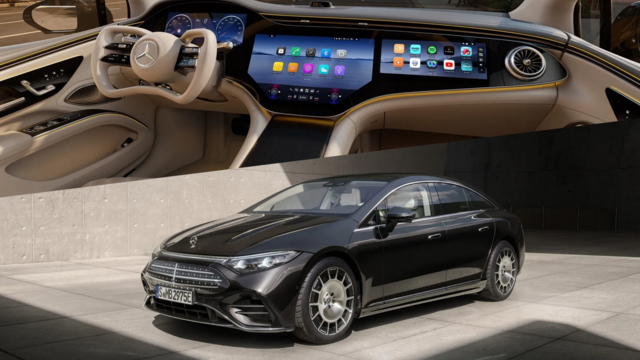
I'm a novice, but I've activated the ambiant lighting feature myself, and now I'm trying to find out the procedure for installing a 10.25" + 10.25" widescreen display, as my vehicle currently has a 7" + 10.25" screen. Is it absolutely necessary to change the head unit to ichigh model?
In DTS I see in the IC177 coding that I can adjust the screen resolution. Can this work without changing the IC? For cloning the mileage and AssystPlus data, how do I do it? Do I use ECU exchange or diagnostic save?
Thanks in advance.
You should start your own thread instead of hijacking another's.
I will attempt to replace the HLI_FL217 module in a 2018 S560. I finally found an identical replacement module on eBay and am now testing out a bench setup with it. It's working!
Using the ECU Exchange function of DTS Monaco I was able to set up a coding configuration that copies "Stored data" as well as all the Variance data. I have successfully read this data from the replacement module on the bench.
Next I need to go out to the car and read the same data from the existing module.
The data looks fairly complete. It includes many different elements, including calibration and binning. Attached is a copy of the saved data.
OK, but keep in mind I'm not an expert at this. I was actually hoping you could tell me whether this is going to work.
Pretty sure ECU Exchange function is only available in DTS 9.02. The trick is to create a configuration for the ECU you want to clone.
On the ECU Exchange tab click the Configure button...
On the Configurator dialog click the Edit button...
In the Sequence Editor dialog, select your ECU. Make sure you select the appropriate Variant based on what Xentry reports. Or, you can use DTS to read it (not covered here)...
Once an ECU is selected, look at the available Services in the right pane. To start, you want items under the StoredData element. Under that element are all the read/write services for data stored in the ECU. Select ONLY the Write services under StoredData and then drag them over onto DataHandling element in the left pane. Note that it will have both a Read and Write subfunction for each item selected. If you see entries without a Read function then those should be deleted from the left pane. You can't write to the ECU what wasn't read first. An example of that is shown here. The HLI the Channel Calibration data has no corresponding Read so it should be excluded.
Entries in left pane all now have both Read and Write functions.
If there's also a VarCoding element in the right pane then you can drag those over to DataHandling as well. Only drag over the Write Dump functions. When done adding DataHandling functions click Save to save the configuration to a file. Then click OK...
You should now be back to the ECU Exchange tab and see something like below. For each data item you should see a Read Service item and a Write Service item.
If any data items lack a Read Service item then they should be removed by editing the configuration again.
At this point, if you're connected to the car or the original module you can click Read from ECU. It should read all the data in the list and will immediately prompt you to save it to a file. I suggest altering the default filename, which is your empty configuration file.
If it doesn't prompt to save then just click Save ECU Data to save it.
The file you save here will be used to write the data to the new ECU once it's installed.
Once the replacement ECU is in place return to the ECU Exchange tab and click Load ECU Data to load the file with the data you saved. You can then click Write to ECU to write all the data to the replacement ECU.
NOTE: it may be necessary to unlock the ECU with a seed key before you can write to it. If you get an error trying to write, note the error code. That may be the problem.
In that case, a request for the seed and a response with the key will be necessary before you can write the data to the ECU.
Disclaimer: do this at your own risk. There are pre-conditions to this working. Here are the ones I know of:
- The hardware versions need to match between the original and replacement ECUs. Don't let a supplier give you what they claim is a substitute. Make sure it matches exactly.
- The software version should match between the original and replacement ECUs. If they don't match then you will need to also FLASH the new ECU so it does match.
- No doubt, there are some ECUs where this won't work. There may be important data for which the ECU does not supply a read/write service. The copy is likely to not work as expected if that's true.
- I have not actually done the final step here on the HLI and don't yet know if it will work.
- Newer vehicles (2020 onward?) now have security certificates. I seriously doubt this procedure will work with those.
For the instructions posted here I went through all the steps again to get the screenshots and in doing that managed to mistakenly use HLI_FR instead of HLI_FL file. I later tested the demo setup on the module and it wouldn't work. That's when I discovered I had used the wrong file. Decided to figure out how to convince the module it's for the right headlight to see if the demo setup would then work. On the schematic found the one pin (53) that differentiates the sides. On the right it's held to +12v and on the left it's grounded. Still didn't work. From what I understand from a WIS description, the left headlight is master and the right headlight is slave in the vehicle network. So I'm assuming my bench setup didn't work for the right headlight because there wasn't a left headlight controller present. Not sure.
Today I went out to the car and pulled the ECU Exchange data from the existing left headlight control module. No problem. I then successfully wrote the existing data to the replacement module on the bench. Hopefully, ECU Exchange captured all the necessary data.
Now it's just a matter of finding the time to tear off the bumper and pull the headlight so I can try the replacement module. Waiting for it to get a bit warmer out.
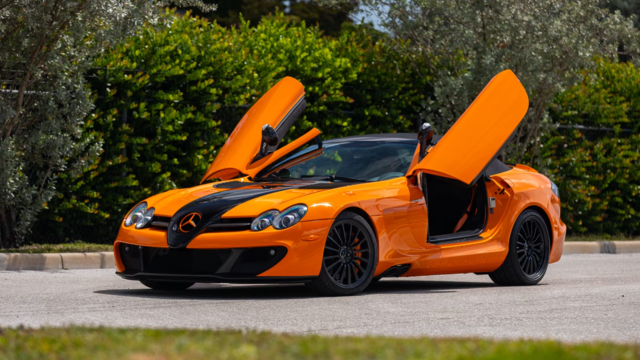
Mercedes SLR McLaren 722 S Is Extremely Rare Example Modified by McLaren
Slideshow: A one-of-one U.S.-spec Mercedes-Benz SLR McLaren Roadster became even rarer after a factory-backed transformation at McLaren's headquarters.