When you click on links to various merchants on this site and make a purchase, this can result in this site earning a commission. Affiliate programs and affiliations include, but are not limited to, the eBay Partner Network.
I bought a CPO 2021 S 580 with the Rear Seat Entertainment Package and I can not figure out how to play any media/videos on the rear screens. I have tried my bluetooth connected phone, my wire connected phone (through various USB-c ports), and the rear mini tablet. With the two phone options I can tell the main screen (which has the phones initial connection) to share with the two rear screens, but it will only play audio and the thumbnail or like album art shows on the screen while the timer bar at the bottom shows the time of the video progressing but there is not video whether I'm streaming Netflix, YouTube, etc. With the mini tablet I downloaded some movies and shows of my kids favorites from Netflix and Disney+ and they will play on the mini tablet but it won't let me share that feed with the two rear screens. The dealer can't figure it out and when I asked if maybe this is something that does not work in the USA they did not know the answer to that either. I feel like all the videos online that I have seen showing media/videos shared amounst the different screens of the car have come from Europe so can I get an confirmation, is this not possible in US based W223 S class's?
I bought a CPO 2021 S 580 with the Rear Seat Entertainment Package and I can not figure out how to play any media/videos on the rear screens. I have tried my bluetooth connected phone, my wire connected phone (through various USB-c ports), and the rear mini tablet. With the two phone options I can tell the main screen (which has the phones initial connection) to share with the two rear screens, but it will only play audio and the thumbnail or like album art shows on the screen while the timer bar at the bottom shows the time of the video progressing but there is not video whether I'm streaming Netflix, YouTube, etc. With the mini tablet I downloaded some movies and shows of my kids favorites from Netflix and Disney+ and they will play on the mini tablet but it won't let me share that feed with the two rear screens. The dealer can't figure it out and when I asked if maybe this is something that does not work in the USA they did not know the answer to that either. I feel like all the videos online that I have seen showing media/videos shared amounst the different screens of the car have come from Europe so can I get an confirmation, is this not possible in US based W223 S class's?
I have the same package and have created a solution for this. I even use my streaming services on the remedy. I will update after I leave the gym.
Awesome, you are the man. I have been so frustrated with this and would love to know how you attacked it. I'm also not far, I live in Bryn Mawr in the Philly burbs. My neighbor is from York originally.
I bought a CPO 2021 S 580 with the Rear Seat Entertainment Package and I can not figure out how to play any media/videos on the rear screens. I have tried my bluetooth connected phone, my wire connected phone (through various USB-c ports), and the rear mini tablet. With the two phone options I can tell the main screen (which has the phones initial connection) to share with the two rear screens, but it will only play audio and the thumbnail or like album art shows on the screen while the timer bar at the bottom shows the time of the video progressing but there is not video whether I'm streaming Netflix, YouTube, etc. With the mini tablet I downloaded some movies and shows of my kids favorites from Netflix and Disney+ and they will play on the mini tablet but it won't let me share that feed with the two rear screens. The dealer can't figure it out and when I asked if maybe this is something that does not work in the USA they did not know the answer to that either. I feel like all the videos online that I have seen showing media/videos shared amounst the different screens of the car have come from Europe so can I get an confirmation, is this not possible in US based W223 S class's?
Good day! As promised, I purchased a device called “Mirascreen” from Amazon. You will also need to purchase a micro HDMI adapter as the regular adapter is too big for the center console; also a usb-c cable (seen in the photo) for power. Connect these to the center console and then on the screen (or tablet) go to “Media” and select whichever HDMI your device is connected to. You will see two options on the screen: Apple WIFI or Android WIFI connection. Go to the Mirascreen device and press the button on the head of the device once, it will then highlight the Android WIFI icon. Now, go to your MB tablet, locate your video or movie to play. Select the movie and start playing it. While it’s playing, go to the top right corner where you will see three dots; click on them and you will see “share”. . . Click on it. Your tablet will then go to another screen and will have a dialogue box (shown in the photo) which says, “share to device”. Scroll that dialogue box and you will see the word, “Mirascreen” as an available device. Click on it, then the entertainment screen (on the seat) will begin to share the screen from the tablet. The tablet will go blank due to the video transfer. Once playing, you can control the volume from the entertainment screen, itself. The first set of photos I shared for a FireTV is more of a direct connection. You can use the remote control to move around the device (so long as you have a reliable WIFI). I hope this help. 1. Mirascreen Device with mini HDMI attachment and USB-C adapter. 2. Once plugged in, seat back screen will show this. Note, apple is highlighted (don’t want this one). Click onto the button on the Mirascreen to change selection. 3. Note, android is now highlighted. 4. Go to the tablet and select the movie you want to display. Start to play the selected movie. 5. Now touch the three dots at the top right of the screen and then select “share” front he drop box. 6. Tablet will then show dialogue box at top “share to device” click on it. 7. Once you click the dialogue box, you will see available devices: Mirascreen. Select it. Your movie will begin to play. 1. FireTV set up 2. You will need micro HDMI and a USB-C power cord (seen in red). 3. Then you control the FireTV with the remote that came with it.
Awesome, you are the man. I have been so frustrated with this and would love to know how you attacked it. I'm also not far, I live in Bryn Mawr in the Philly burbs. My neighbor is from York originally.
I hope what I’ve shown you helps. We can also communicate via WhatsApp or FaceTime for a walk through if needed. I went to PENN so I know the Philly area very well.
Wow, love that you figured this out. My kids are going to flip when they see this finally working. So I have an extra fire TV stick laying around so it sounds like I just need to order the Mirascreen and a micro HDMI adapter. I think I also have a USB-C power cord but would you recommend ordering a specifically short one to avoid annoying excess cord? I will order those things and then a Facetime walk through would be great. My cell is 724-456-9846
Wow, love that you figured this out. My kids are going to flip when they see this finally working. So I have an extra fire TV stick laying around so it sounds like I just need to order the Mirascreen and a micro HDMI adapter. I think I also have a USB-C power cord but would you recommend ordering a specifically short one to avoid annoying excess cord? I will order those things and then a Facetime walk through would be great. My cell is 724-456-9846
So for the FireTV you don't need the Mirascreen (or any HDMI mirroring device). But you do need it if you're going to show movies from your tablet in the rear (which is an android) or your cell phone ( if you you have android or apple). I like the shorter USB-C cord because of exactly, less cable mess but it doesn't matter however the connections are very sensitive. Remember you can order any HDMI mirroring device, I just went with the cheapest; it's not like I'm mirroring from the Hubble telescope! LoL!! You may also be able to go to Best Buy or somewhere to get this equipment. Hit me up when you do and I will call you if you need a walk-through.
Have you tried or considered the (Google TV 4K Streamer)? I HIGHLY HIGHLY recommend it. I have it in my sedan, thought not an S, but should work the same exact way in your W223 as in my 7-series. I posted about this before so here is a summary of my setup that you can try.
I’ve found this as a simple way to make this rear screen fully functional without any additional e-sim streaming fees for internet signal, and yet with a neat remote control with smart voice control too and works perfectly with YouTube, Netflix, and other apps.
Here is list of items I purchased:
1. Google TV 4K Streamer (small box) with remote control
2. Short HDMI cable
3. Short USB-C to USB-C cable
4. Double-sided tape
Setup & connections:
1. Use the double-sided tape to mount the streamer device to the back of the screen, along with the short cables (clean setup). This keeps things neat with no hanging wires. The device is slim enough to fit behind the screen or hidden anywhere else.
3. Connect the HDMI cable from the screen to the Google 4K Streamer de ice; and Use the screen’s rear USB-C port to power the Chromecast.
Operation mode:
1. Use the Chromecast remote to power it on (power button on the remote control). The screen will automatically switch to the HDMI input then.
2. You’ll now see the Google TV UI interface, with YouTube, Netflix, and all other streaming apps.
3. For in-car use, let the Chromecast connect to your iPhone hotspot just once. After that, each time you get in the car, just toggle your hotspot on and it will auto-connect and Chrome device will have live connection. You can even automate your phone too for this so your hotspot turns on automatically whenever your phone connects to CarPlay (use iphone automations app as an option)
Things I really liked:
The Chromecast 4K remote is excellent. Even younger kids who can't yet write can just press the mic button on the remote control, and say “I want to watch so-and-so on YouTube,” and Google’s voice AI system assistant instantly opens YouTube app (cause all google apps are integrated with the device software), it will automatically type the search words based on the words during the voice request, and shows the search results on youtube app or any other app the same way.
Audio plays through the car’s speakers with no issues cause the stream is connected through the HDMI sending video and voice signals.
Bonus items...Chromecast can also sync audio to a Bluetooth speaker. This means you could mount a small Bluetooth speaker near the rear headrests so the kids can listen to their content in the rear, while front passengers use the car’s sound system for music as normal. Chrome device will always auto-connect to that bluetooth speaker then. Can also use headphones.
This setup honestly works better than the factory system for me....clean install, easy to use, and super flexible.
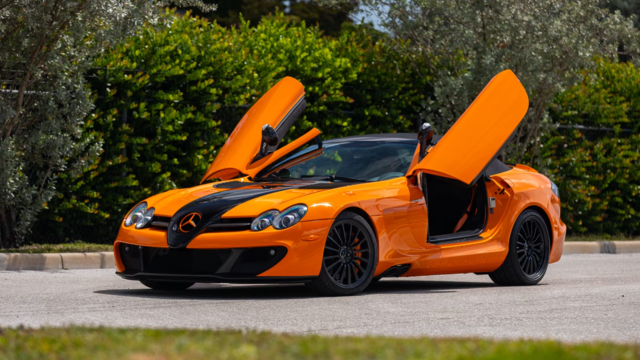
Mercedes SLR McLaren 722 S Is Extremely Rare Example Modified by McLaren
Slideshow: A one-of-one U.S.-spec Mercedes-Benz SLR McLaren Roadster became even rarer after a factory-backed transformation at McLaren's headquarters.