When you click on links to various merchants on this site and make a purchase, this can result in this site earning a commission. Affiliate programs and affiliations include, but are not limited to, the eBay Partner Network.
That it turns out was the solution. Formatted the SSD to NTFS redownloaded the update plugged the SSD into the car and the nav was updated.
Thank you
Glad you got it to work. It's very puzzling that some such as yourself had to use NTFS to get it to work while others, such as myself, had no issues with exFAT.
I was installing V11.0, but couldn't wait for it to finish installing. When I got back to the car and tried to restart the installation, the system seems to be stuck says it is installing at 0%, tried to cancel it, says it was cancelled but the system is still stuck. I have done updates before in the car with no issue and also in my 2019 W238. Anyone have any ideas how to get past this other than doing a full system reset.
I was installing V11.0, but couldn't wait for it to finish installing. When I got back to the car and tried to restart the installation, the system seems to be stuck says it is installing at 0%, tried to cancel it, says it was cancelled but the system is still stuck. I have done updates before in the car with no issue and also in my 2019 W238. Anyone have any ideas how to get past this other than doing a full system reset.
Try just letting it do its thing, it might be undoing the changes since you cancelled midway and then restarting. Another thing is, if it has to actively download files, it will take time and depends on the connection.
So, after a lot of trial and error (lots of errors and way too much time), I finally got this to work on a Mac. It wasn’t easy and it was only a last ditch “Hail Mary” that ultimately worked for me on a 2021 E450 wagon that I just purchased.
Based on my results, I’d have to believe that this would go seamlessly on a PC, however I don’t have one and didn’t want to try it with someone else’s machine (although I was about to).
Ok, so here’s what worked for me after installing the MB Download Manager.
I think the trick really is to be able to use a drive with NTFS format, as for the life of me I couldn’t get exFAT to work (even though it’s a supported format). But, as a Mac user, there’s no way to natively format a read/write NTFS without a third-party tool. After some research I went with NTFS for Mac, by Paragon (10-day free trial!). It’s a bit challenging to install as you’ve got to enable some permissions, but the directions are pretty clear, just make sure you follow them.
Also, since I’d read that there can be issues with USB drives that use an adapter (e.g., USB -a to USB-c) I went out and got a new 256gb SanDisk with both connections ($25 on Amazon).
I fired up Paragon, inserted my new drive and had the option to format to “Microsoft – NTFS” – yay! I got that bad boy properly formatted and was feeling pretty good!
So, I go back to the me.mercedes-benz.com site and started the region selection and download process. And much to my horror, the Download Manager listed the drive but wouldn’t let me select it. I went back and reformatted it again with no luck. Then I swore a few times.
So here’s the Hail Mary….. I had the maps I wanted on an exFAT drive and had a new NTFS drive, what if I just moved the files from the exFAT to the NTFS bypassing the MB Download Manager altogether? Surely that wouldn’t work, would it?
Well, it did! Apparently, the car would accept the format, even though the download manager would not (insane). I put the drive in, started the car, and in about a minute I got a message saying that a new update was available and did I want to install it. It installed fine and then restarted the MBUX and Nav systems. Success!
One other thing – setting your Home Region.
This is actually where my journey began. Having just purchased this vehicle as a CPO, I noticed that the Home Region for maps was set to Florida/Georgia/etc. (most likely the previous owner). You get automatic map updates in your Home Region, so it should be set where you live / travel the most. I’m in the Upper Midwest so it definitely needed to be reset.
Now to change your Home Region online, you first have to update that Region manually so it’s up to date (They probably don’t want to push big updates OTA). And thus began my map update adventure.
After you update your Home Region (or any/all other regions if you want to update) map in the car, you can’t set a region as your Home Region until the car synchronizes with MB. I couldn’t find a way to force it, but I came up with the crazy idea of setting a nearby destination and going for a quick drive. When I came back, I saw online that my Home Region had been updated, and I could now select it and will now get automatic map updates for that region.
I hope this helps Mac users that are struggling with this – happy to answer questions if I can.
So, after a lot of trial and error (lots of errors and way too much time), I finally got this to work on a Mac. It wasn’t easy and it was only a last ditch “Hail Mary” that ultimately worked for me on a 2021 E450 wagon that I just purchased.
Based on my results, I’d have to believe that this would go seamlessly on a PC, however I don’t have one and didn’t want to try it with someone else’s machine (although I was about to).
Ok, so here’s what worked for me after installing the MB Download Manager.
I think the trick really is to be able to use a drive with NTFS format, as for the life of me I couldn’t get exFAT to work (even though it’s a supported format). But, as a Mac user, there’s no way to natively format a read/write NTFS without a third-party tool. After some research I went with NTFS for Mac, by Paragon (10-day free trial!). It’s a bit challenging to install as you’ve got to enable some permissions, but the directions are pretty clear, just make sure you follow them.
Also, since I’d read that there can be issues with USB drives that use an adapter (e.g., USB -a to USB-c) I went out and got a new 256gb SanDisk with both connections ($25 on Amazon).
I fired up Paragon, inserted my new drive and had the option to format to “Microsoft – NTFS” – yay! I got that bad boy properly formatted and was feeling pretty good!
So, I go back to the me.mercedes-benz.com site and started the region selection and download process. And much to my horror, the Download Manager listed the drive but wouldn’t let me select it. I went back and reformatted it again with no luck. Then I swore a few times.
So here’s the Hail Mary….. I had the maps I wanted on an exFAT drive and had a new NTFS drive, what if I just moved the files from the exFAT to the NTFS bypassing the MB Download Manager altogether? Surely that wouldn’t work, would it?
Well, it did! Apparently, the car would accept the format, even though the download manager would not (insane). I put the drive in, started the car, and in about a minute I got a message saying that a new update was available and did I want to install it. It installed fine and then restarted the MBUX and Nav systems. Success!
One other thing – setting your Home Region.
This is actually where my journey began. Having just purchased this vehicle as a CPO, I noticed that the Home Region for maps was set to Florida/Georgia/etc. (most likely the previous owner). You get automatic map updates in your Home Region, so it should be set where you live / travel the most. I’m in the Upper Midwest so it definitely needed to be reset.
Now to change your Home Region online, you first have to update that Region manually so it’s up to date (They probably don’t want to push big updates OTA). And thus began my map update adventure.
After you update your Home Region (or any/all other regions if you want to update) map in the car, you can’t set a region as your Home Region until the car synchronizes with MB. I couldn’t find a way to force it, but I came up with the crazy idea of setting a nearby destination and going for a quick drive. When I came back, I saw online that my Home Region had been updated, and I could now select it and will now get automatic map updates for that region.
I hope this helps Mac users that are struggling with this – happy to answer questions if I can.
Glad you got it working. It is supposed to work with exFAT which is supported by Macs but clearly some are having issues with exFAT. I have not had these issues myself, but who knows if I will in the future.
Regarding what you read about issues with USB adapters (A->C or C->A). I'm not advocating for or against adapters and in fact would prefer to not use them, however, they can be used without issue as long as you use a quality adapter that supports data as well as power. In addition, you want to be sure you are using an adapter that supports transfer speeds you need. Buying a good quality adapter, if needed, is important just as much as getting a good quality USB drive. The drive I use for map updates is a USB-A drive and I use an adapter to convert it to USB-C in the car. I also use USB-C drives in the car with 90° adapters that do not degrade transfer speed or cause issues. I've documented those here. As with many things, as long as you get good high quality stuff, you should be okay. Of course, there are always exceptions and it can be somewhat trial and error. Not using an adapter, as you have done, avoids the issue entirely which there is nothing wrong with that either.
On setting the region, how do you do that? I have not seen a place in Mercedes Me (site or app) to set that and I don't recall coming across that in the car settings anywhere. Can you provide the details on where that is set? I did find where I can set an address in my profile. Is that what you are talking about?
To set your Home Region, you'll need to login at: https://www.me.mercedes-benz.com then go to "Manage Services" then "Online Map Update". I was doing this from a laptop - not sure what the experience would be like on a phone/tablet.
From there you can manually update the maps as well as set the Home Region. As I mentioned, the region you wish to choose as your Home Region must have the current map, otherwise it will not allow you to select it. I updated all my maps, otherwise it would show which ones needed to be updated.
To set your Home Region, you'll need to login at: https://www.me.mercedes-benz.com then go to "Manage Services" then "Online Map Update". I was doing this from a laptop - not sure what the experience would be like on a phone/tablet.
From there you can manually update the maps as well as set the Home Region. As I mentioned, the region you wish to choose as your Home Region must have the current map, otherwise it will not allow you to select it. I updated all my maps, otherwise it would show which ones needed to be updated.
Interesting. Maybe they made some changes from when I documented the update process in post #6 of this thread back in August 2024. I did a manual update just a month ago and don't recall seeing the option to set the home region. This may be new. Going there now, I just see the below message, but I'm up to date with v11.0. I'll look for this the next time I find a new version.
So my car came with 5.0 map. I used the website to download 11.0 and successfully installed via thumb drive. Restarted the navigation system but the system still shows map version of 5.0. On the website it shows I have 11.0. So do I have 5.0 or 11.0? LOL. Also my mbux is still 262.3-4975 and no 3.2.1 update being pushed to me.
So my car came with 5.0 map. I used the website to download 11.0 and successfully installed via thumb drive. Restarted the navigation system but the system still shows map version of 5.0. On the website it shows I have 11.0. So do I have 5.0 or 11.0? LOL. Also my mbux is still 262.3-4975 and no 3.2.1 update being pushed to me.
If it's still showing 5.0 even after a couple restarts, you may need to bring it to the dealer. I seem to recall one other forum member having similar map update issues that had to bring it in. Dealership could also update your MBUX to 3.2.1 or whatever is the latest while they fix the navigation maps.
I had this issue in the past and found if only updating my region, it would not change the version number, but when I updated all of the regions then the version number would change. Did you only update your region?
I had this issue in the past and found if only updating my region, it would not change the version number, but when I updated all of the regions then the version number would change. Did you only update your region?
Thanks. I updated the entire map - although I selected each individual state instead of the "all map" option, and I did notice the size of the file is slightly smaller this way.
Now if I go to the online update website, it doesn't give me any option to update the map as it's showing I have the latest map everywhere.
I'm hoping it's not because the latest map is not compatible with older MBUX versions. Online
Last edited by WagonAllTerrain; Apr 14, 2025 at 12:51 PM.
One thing I tried after installing new maps was to set a nearby destination and navigate to it. For me, as least, that seemed to force the update to show up.
V12 map just came out on the website. Will do the full map update and report back.
Just looked and the update doesn't appear for me. In fact, I can't get to the area to even see my map version let alone get an update. Something seems broken with Mercedes Me website at the moment. I no longer see the update link at the top after clicking on manage services. A different link is at the bottom but it has an invalid URL of "https://www.me.mercedes-benz.comundefined/". Looks like someone messed something up at the Mercedes Me website.
not sure what the latest thread is for map updates on the W214 but just in case, I want to give a heads up that map V15 with 2026 (V15.0) is out. I am currently downloading ask I speak. Thanks OP and especially thank you to forum member L1Wolf for posting the tutorial.
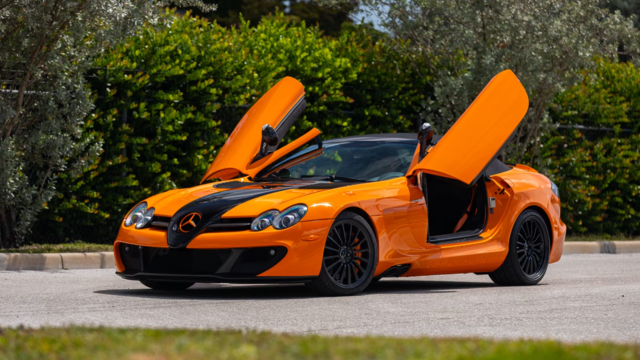
Mercedes SLR McLaren 722 S Is Extremely Rare Example Modified by McLaren
Slideshow: A one-of-one U.S.-spec Mercedes-Benz SLR McLaren Roadster became even rarer after a factory-backed transformation at McLaren's headquarters.