When you click on links to various merchants on this site and make a purchase, this can result in this site earning a commission. Affiliate programs and affiliations include, but are not limited to, the eBay Partner Network.
Just ordered one of these after lurking in the shadows for a month reading these posts and I'm excited. What's the usual wait times for the product to arrive? I ordered about 4 days ago but the updates for shipping stopped when it arrived at shenzhen. Typical behavior? Or should I be worried. Thanks in advance
Just ordered one of these after lurking in the shadows for a month reading these posts and I'm excited. What's the usual wait times for the product to arrive? I ordered about 4 days ago but the updates for shipping stopped when it arrived at shenzhen. Typical behavior? Or should I be worried. Thanks in advance
Absolutly normal...3week -8 weeks is normal, not sure but i think there is still china new year..
Starting to install this device and came across 2 issues. Couldn't get the carplay interface to stay on so I switched the dipswitches and all was good. Went to put everything back together and couldn't for my life to get the radio back in. So I decided to check the device again after I tried to make the wires fit and now to stock radio image but now I have a carplay image. Any ideas?
Update.
No image at all. Neither Command or carplay. I get audio from stock radio. A bit disappointing after I've been excited to have this installed on my car. Any ideas?
Update.
Appears lvsd connection wasn't fully seated going into the head unit. Now I have stock command interface and I'm connected to the carplay device but no image besides the initial long button press and the Image goes away. I'm on dipswitch setting 2 down and 6 down.
I installed the Kremersino into my US spec 2011 E63 this weekend and everything seems to be working well. Very much enjoying Apple CarPlay!
A few notes from my install:
The new Kremersino unit does not come with or require a separate microphone to use Siri. It uses the factory microphone.
There is no separate box for the lvsd connection.
I did not have to change the dip switches from the factory settings.
To remove the connector for the 12v socket in the glove box, pull straight up at a 90 degree angle from the connector. There is no lock securing the connector.
The MMI connector can be removed by pushing in the metal tabs on either side of the connector and pushing it INTO the glovebox. Then you can turn the connector sideways and slide it out of the glove box.
I installed the Kremersino box to the left side of the glovebox as Bucks Garage did. I zip tied it in place and it fit perfectly.
Hey everyone, NTG 4.0 with the silver box (without the LVDS small box).
Since I installed the unit I have noticed the consistent problem of my screen flickering whenever I honk the horn or use my power seats switches (basically a load).
I have been on and off with the support team on this but still without a solution. Did anyone face a similar issue?
Note: Happens on the factory screen more than the box screen but still flickers quite a bit.
This is a DIY Installation thread that covers how to install wireless Apple CarPlay for Comand unit NTG4.0 in most Mercedes-Benz models from 2009-2011. This thread is based and inspired off of @cadetdrivr 's amazing install thread for NTG4.5/4.7 foundhere.
The device I used is a Kremersino Wireless CarPlay box that merges the videos cables of the factory Comand unit and allows for a plug and play install, no splicing or cutting what so ever. The install is very clean and looks factory (retains factory resolution), you can switch easily between the CarPlay screen* and the factory Comand navigation screen. *(As I keep referring to this unit as a CarPlay device, please note that it also supports Android Auto. I am all Apple products so I will refer to the screen as the CarPlay unit. Please also note that I have not tested Android Auto on my NTG4.0 unit.)*
I am not going to cover how to install the unit in-depth as @cadetdrivr has already made clear instructions on how to get started on the W212 interior foundhere. There are some differences, as his car is a W212R 2014+, and I will cover those differences here.
I am not much of a DIYer or a mechanic but I found this job to be somewhat easy with some help from a friend.
Job time - 3 to 4 hours Experience level - none prior Tools needed - Big towel, plastic pry bars, electrical tape, and TORX T20
Unit purchased - https://www.aliexpress.com/item/4001049263624.html (Must select NTG4.0 option before adding to cart) My vehicle - 2010 W212 E350 with NTG4.0, Harman Kardon, and glovebox audio AUX (Mercedes Media Interface Cable)
Please make sure to identify what NTG unit you have before purchasing your CarPlay unit. Contact Kremersino if needed. WhatsApp +86 134 2516 3678 or Ali Express chat
This is what comes in the package:
Everything you will need to get CarPlay working in your Mercedes. (Source: @reject )
Some owners stated it was hard to find the last screws for the glovebox, You will need to pry off the side panel to the right of the glovebox (LHD USA) with the plastic pry bar. The glovebox is still fixed in place with all screws removed, so remember that for the reinstall, the glovebox should not move or be unstable even with all screws removed.
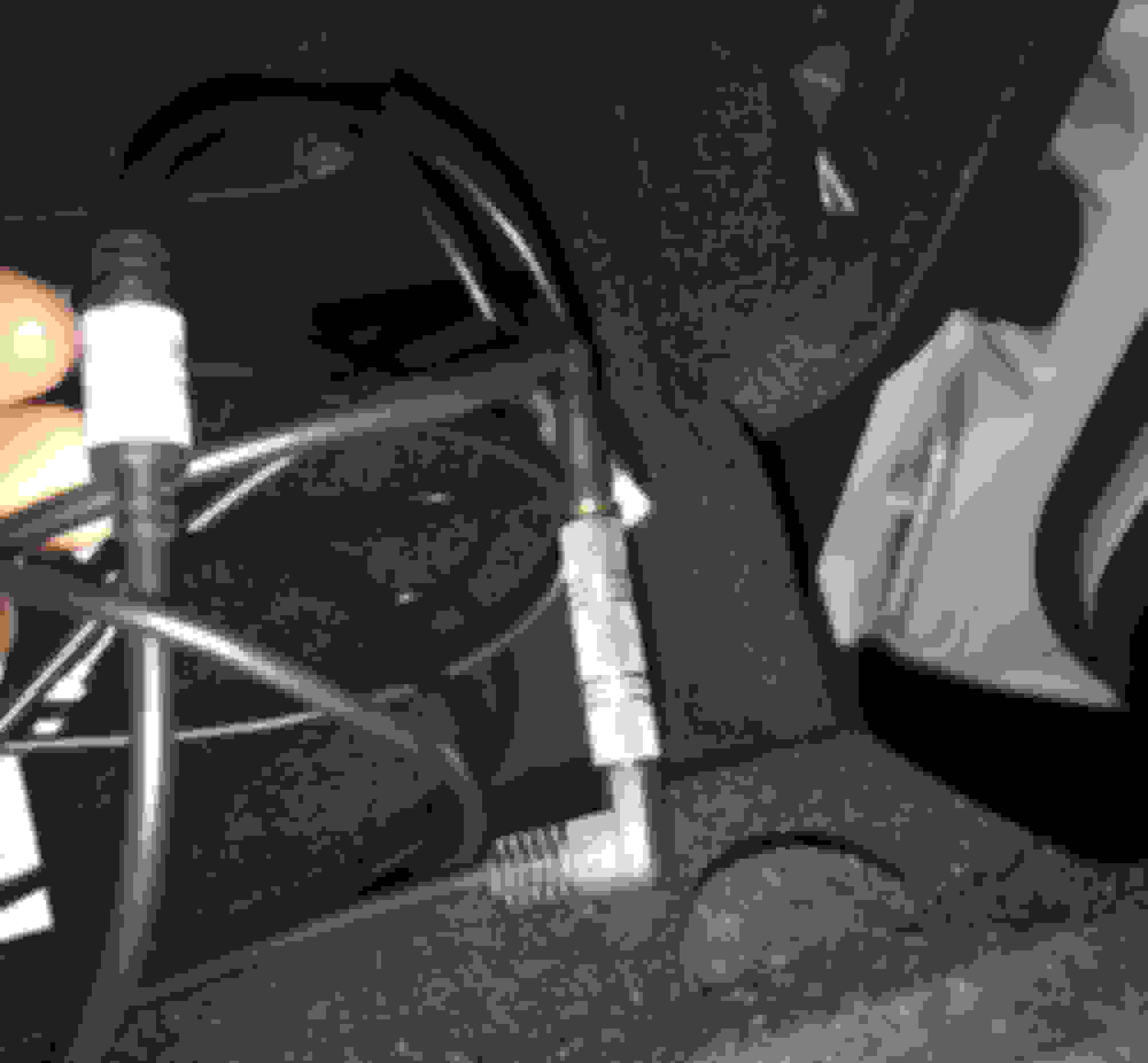
I could not figure out how to fully remove the MMI cable from the glovebox, so I left my glovebox in the passenger footwell. There is plenty of slack for the thick MMI cable to rest and the glovebox sat fine on the passenger floor. Feel free to disconnect the MMI cable if you know how to or leave it and do what I did. This is one of the differences from the W212R removal process.
Remove the two screws on the top of the Comand unit. You'll want to remove everything from the cup holders and close the lid. Place a big towel over the AC controls, Comand scroll wheel, Cup holders, and any other lower center trims. This is to protect your car while the Comand unit is pulled out.
Make sure to transfer the orange Fiber-Optic cable to the new power harness, this is for your sound. It is very special (handle with care). 10 year old plus wires.
Plug everything in and test to see if the unit works before reinstalling. Make sure sound, controls, and all features work on both the factory Comand screen and the CarPlay screen.
IMPORTANT: LVDS CABLE
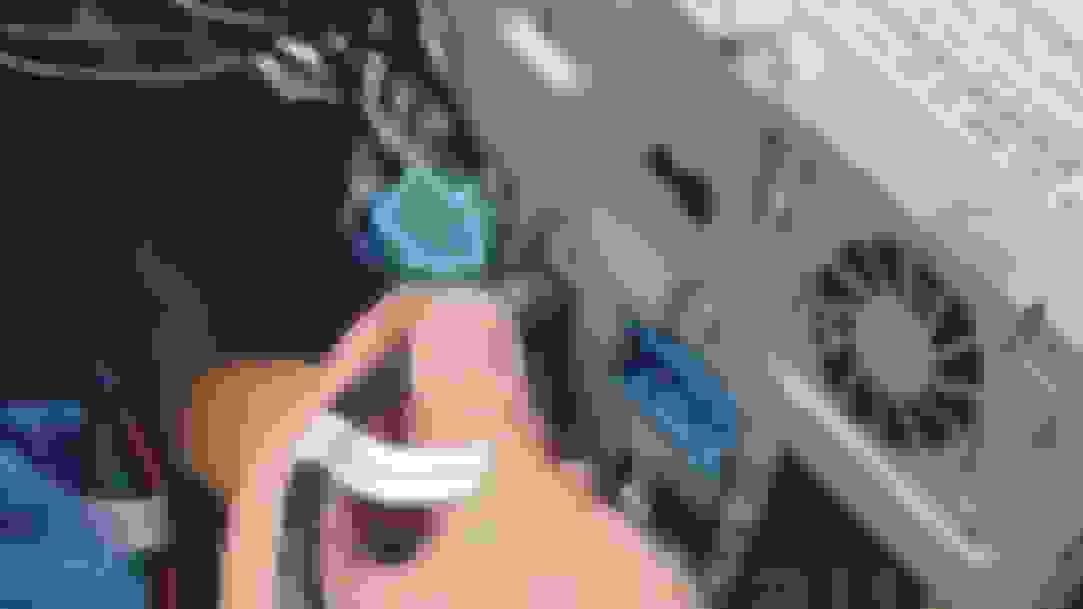
MAKE SURE THE LVDS CABLE GOES IN THE RIGHT WAY. There is an indent, or small marking that shows and that should be facing up. Do not install upside down. It will be a pain to remove from Comand unit. I have included a picture here to show which way it should be plugged in. There is this marking in the middle on one side only, you can't miss it.
See the little hump that the blue arrow is pointing to? Make sure that side is facing up. Plug in and it should be snug. (Source: Kremersino Install video)
RE INSTALLATION:
Run all of the cables to right side where you removed the glovebox. Unfortunately, our gloveboxes do not have a removable opening like the W212R gloveboxes (I checked and could not find anything. YMMV). So, I was unable to store the CarPlay unit on the top tray of my glovebox like @cadetdrivr . We will get back to this later.
Tuck all of the extra wires and cables behind the AC control unit. There is plenty of room for the big power harness and the small LVDS box. Slide the Comand unit back into place until it is flush. This may take a couple of tries before it become flush. Slide the Comand unit in and out unit it is flush.
Reinstall the glovebox and make sure all of the wires you pulled over are clear of the glovebox's path and it is set to the bottom corner (in between the bottom footwell trim (removed right now) and the glovebox. Near the OFF button on the AC controls.
At this point, your Comand unit should be reinstalled, the glovebox reinstalled, and the upper air vent long strip. Almost done.
(UPDATE 9/14/20 - NO NEED FOR MMI TO AUX)Run the Aux cable from the wires at the bottom to inside of the glovebox, very easy. This is how you will get your sound. Using the MMI cable in the glovebox. You will need the 3.5mm female to female adapter if your MMI to aux is male.
This is my 3.5mm female to female. Found at Guitar Center the same day as the install. In glovebox.
Reinstall the bottom footwell trim (three screws). Leave the CarPlay unit resting on top of the trim (on the insulation). Make sure the wifi antenna, and all other connections are plugged in. It is going to be harder to get the three screws in with the box sitting on top, but you can do it! This is a great way to store the box for the people who don't have access to put the unit in the glovebox. It can be easily acessed with only three torx 20 screws.
The unit will be good here. You can also turn on head and footwell airflow to blow some more cold air in that area near the unit but, it hasn't been an issue for me yet. (Some other owners were having overheating issues).
Run the USB cable to wherever you would like (get creative). You can drill into the ash try and hide it there, route it to the glovebox, or simply let it poke out of the footwell. Regardless, the cable needs to be easily accessible (for updating the unit, charging, and wired CarPlay / Android).
It should look something like this.
FINISHED:
Everything should be working now. Take a drink, pat yourself on the back, and make sure everything is working one last time.
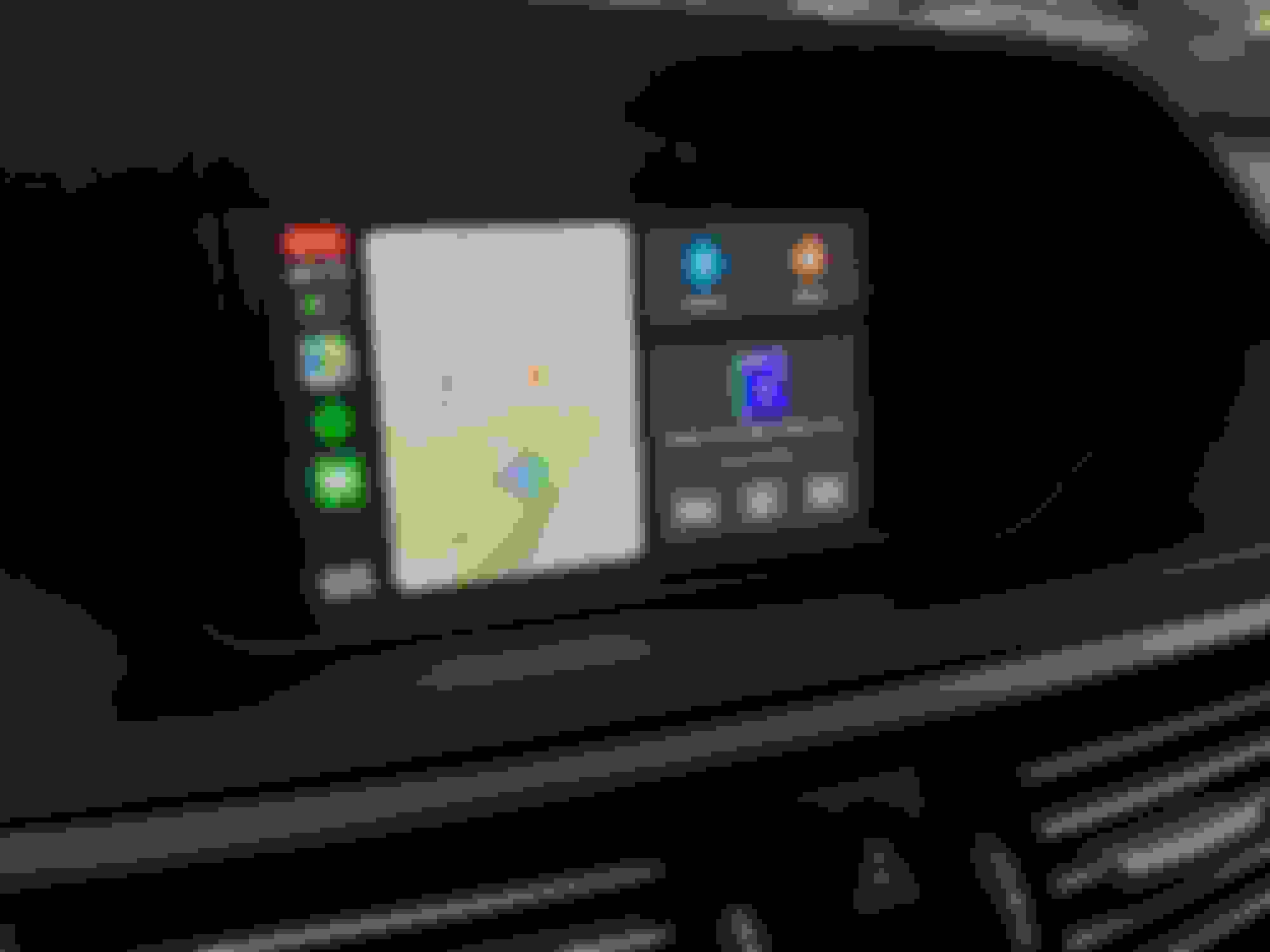
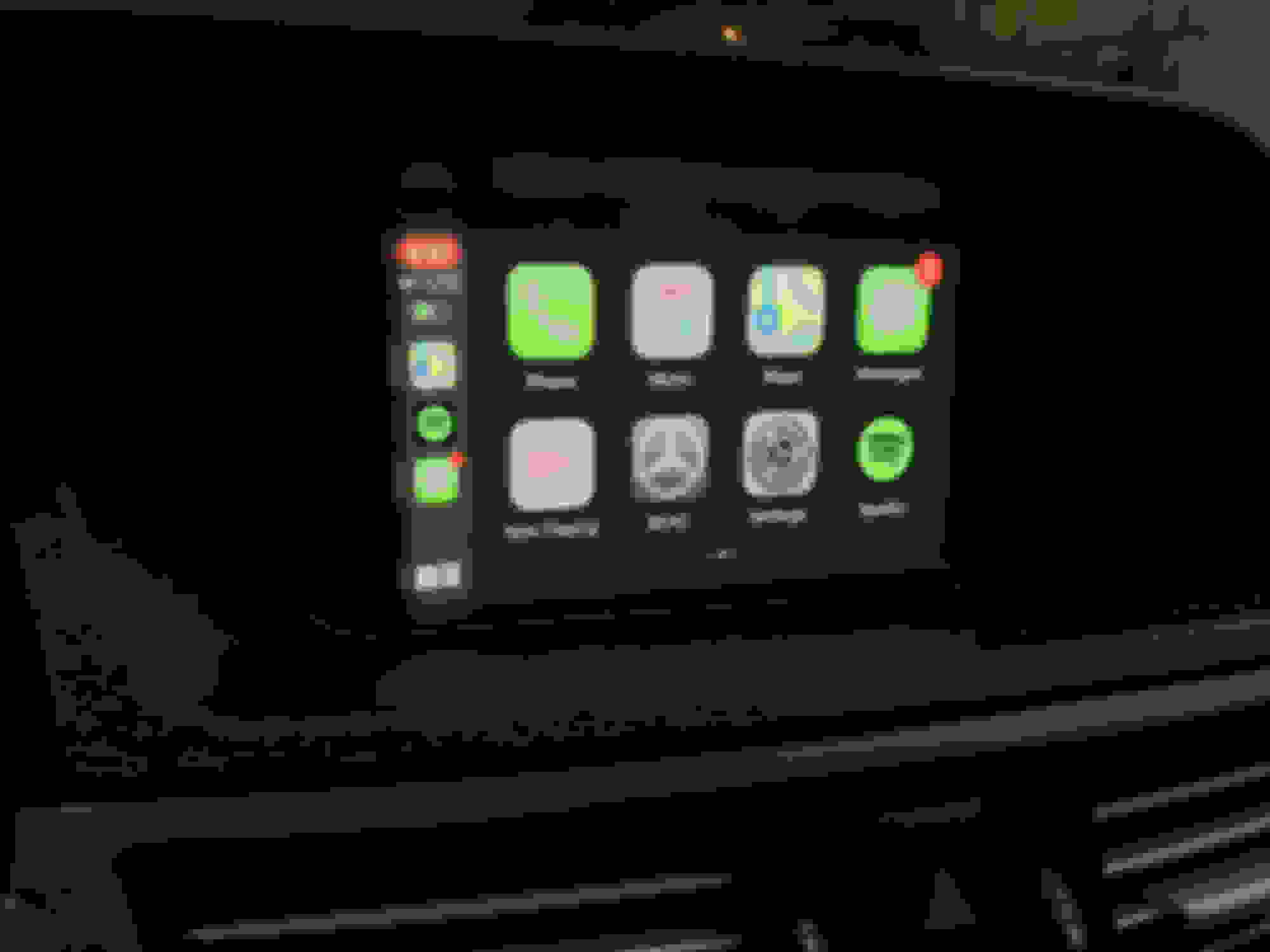
It should look like this! YAY
If you are not getting sound through CarPlay, go back into the Comand screen and make sure you have selected AUX.
If you are still not getting sound, make sure you have activated AUX in engineering mode. Here is a video on how to do it. Your AUX may be already activated, everyone's will be different.
(UPDATE 10/14/20 - RE-ENABLE SDARS AND EXTERNAL AMP IN TGW PARAMETER MOST SETTINGS) Make sure to re-enable SDARS and External amp in the TGW Paramter MOST settings. This will ensure the sound is going to the speakers as well as your SAT radio and live traffic updates for the regular Comand unit screens.
MY PERSONAL THOUGHTS:
This is a great unit. It really updates my 10 year old Mercedes. This is a great and cheaper alternative to the big android screen head unit upgrade. IMHO, this is better than those android screens. It retains factory look and the anti glare properties of the OEM screen. You can easily flip back and fourth with Comand and CarPlay. If you are thinking about getting it, go for it. It doesn't hurt and it is fully reversible.
This DIY thread was not possible without the endless support of @cadetdrivr !! Make sure to give him a shout! He spends loads of time troubleshooting and helping for the NTG4.5/4.7 owners. And I hope to do the same for the NTG4.0 owners along with some other members who also has this unit on the way.
I will constantly be updating and communicating on this thread. About software updates, new issues, and other comment about the unit. So far, so good. Kremersino has great support through WhatsApp with fast response times (+86 134 2516 3678). They offer software updates and a warranty similar to the owners with RoadTop and Joyeauto.
PLEASE NOTE:
I did NOT install the included microphone. I never use SIRI and that is the main use for the microphone. You can still answer calls through CarPlay and use the factory MB mic! All you need to do is go to Settings > Accessibility > Touch > Call Audio Routing > and SET to Bluetooth Headset. You can answer calls on CarPlay and when you hit Accept, it will route the call to the factory MB Bluetooth. Make sure you are connected to both MB Bluetooth and the CarPlay unit Bluetooth for this to work.
You may feel the need to install the included microphone (for SIRI only), follow the video installation and route it to where you wish.
OTHER THREADS TO READ:
I suggest checking out these other threads before purchasing or attempting to install the unit.
Hi guys!
I found a decoder on amazone for ngt4.5 and ngt4.7 (I have ngt4.7)
But the installation seems rather techical
I saw some adverts for a simple usb-dongle-solution for upgrading to carplay.
Anyone here know if such a solution is possible??
This is a DIY Installation thread that covers how to install wireless Apple CarPlay for Comand unit NTG4.0 in most Mercedes-Benz models from 2009-2011. This thread is based and inspired off of @cadetdrivr 's amazing install thread for NTG4.5/4.7 foundhere.
The device I used is a Kremersino Wireless CarPlay box that merges the videos cables of the factory Comand unit and allows for a plug and play install, no splicing or cutting what so ever. The install is very clean and looks factory (retains factory resolution), you can switch easily between the CarPlay screen* and the factory Comand navigation screen. *(As I keep referring to this unit as a CarPlay device, please note that it also supports Android Auto. I am all Apple products so I will refer to the screen as the CarPlay unit. Please also note that I have not tested Android Auto on my NTG4.0 unit.)*
I am not going to cover how to install the unit in-depth as @cadetdrivr has already made clear instructions on how to get started on the W212 interior foundhere. There are some differences, as his car is a W212R 2014+, and I will cover those differences here.
I am not much of a DIYer or a mechanic but I found this job to be somewhat easy with some help from a friend.
Job time - 3 to 4 hours Experience level - none prior Tools needed - Big towel, plastic pry bars, electrical tape, and TORX T20
Unit purchased - https://www.aliexpress.com/item/4001049263624.html (Must select NTG4.0 option before adding to cart) My vehicle - 2010 W212 E350 with NTG4.0, Harman Kardon, and glovebox audio AUX (Mercedes Media Interface Cable)
Please make sure to identify what NTG unit you have before purchasing your CarPlay unit. Contact Kremersino if needed. WhatsApp +86 134 2516 3678 or Ali Express chat
This is what comes in the package:
Everything you will need to get CarPlay working in your Mercedes. (Source: @reject )
Some owners stated it was hard to find the last screws for the glovebox, You will need to pry off the side panel to the right of the glovebox (LHD USA) with the plastic pry bar. The glovebox is still fixed in place with all screws removed, so remember that for the reinstall, the glovebox should not move or be unstable even with all screws removed.
I could not figure out how to fully remove the MMI cable from the glovebox, so I left my glovebox in the passenger footwell. There is plenty of slack for the thick MMI cable to rest and the glovebox sat fine on the passenger floor. Feel free to disconnect the MMI cable if you know how to or leave it and do what I did. This is one of the differences from the W212R removal process.
Remove the two screws on the top of the Comand unit. You'll want to remove everything from the cup holders and close the lid. Place a big towel over the AC controls, Comand scroll wheel, Cup holders, and any other lower center trims. This is to protect your car while the Comand unit is pulled out.
Make sure to transfer the orange Fiber-Optic cable to the new power harness, this is for your sound. It is very special (handle with care). 10 year old plus wires.
Plug everything in and test to see if the unit works before reinstalling. Make sure sound, controls, and all features work on both the factory Comand screen and the CarPlay screen.
IMPORTANT: LVDS CABLE
MAKE SURE THE LVDS CABLE GOES IN THE RIGHT WAY. There is an indent, or small marking that shows and that should be facing up. Do not install upside down. It will be a pain to remove from Comand unit. I have included a picture here to show which way it should be plugged in. There is this marking in the middle on one side only, you can't miss it.
See the little hump that the blue arrow is pointing to? Make sure that side is facing up. Plug in and it should be snug. (Source: Kremersino Install video)
RE INSTALLATION:
Run all of the cables to right side where you removed the glovebox. Unfortunately, our gloveboxes do not have a removable opening like the W212R gloveboxes (I checked and could not find anything. YMMV). So, I was unable to store the CarPlay unit on the top tray of my glovebox like @cadetdrivr . We will get back to this later.
Tuck all of the extra wires and cables behind the AC control unit. There is plenty of room for the big power harness and the small LVDS box. Slide the Comand unit back into place until it is flush. This may take a couple of tries before it become flush. Slide the Comand unit in and out unit it is flush.
Reinstall the glovebox and make sure all of the wires you pulled over are clear of the glovebox's path and it is set to the bottom corner (in between the bottom footwell trim (removed right now) and the glovebox. Near the OFF button on the AC controls.
At this point, your Comand unit should be reinstalled, the glovebox reinstalled, and the upper air vent long strip. Almost done.
(UPDATE 9/14/20 - NO NEED FOR MMI TO AUX)Run the Aux cable from the wires at the bottom to inside of the glovebox, very easy. This is how you will get your sound. Using the MMI cable in the glovebox. You will need the 3.5mm female to female adapter if your MMI to aux is male.
This is my 3.5mm female to female. Found at Guitar Center the same day as the install. In glovebox.
Reinstall the bottom footwell trim (three screws). Leave the CarPlay unit resting on top of the trim (on the insulation). Make sure the wifi antenna, and all other connections are plugged in. It is going to be harder to get the three screws in with the box sitting on top, but you can do it! This is a great way to store the box for the people who don't have access to put the unit in the glovebox. It can be easily acessed with only three torx 20 screws.
The unit will be good here. You can also turn on head and footwell airflow to blow some more cold air in that area near the unit but, it hasn't been an issue for me yet. (Some other owners were having overheating issues).
Run the USB cable to wherever you would like (get creative). You can drill into the ash try and hide it there, route it to the glovebox, or simply let it poke out of the footwell. Regardless, the cable needs to be easily accessible (for updating the unit, charging, and wired CarPlay / Android).
It should look something like this.
FINISHED:
Everything should be working now. Take a drink, pat yourself on the back, and make sure everything is working one last time.
It should look like this! YAY
If you are not getting sound through CarPlay, go back into the Comand screen and make sure you have selected AUX.
If you are still not getting sound, make sure you have activated AUX in engineering mode. Here is a video on how to do it. Your AUX may be already activated, everyone's will be different.
(UPDATE 10/14/20 - RE-ENABLE SDARS AND EXTERNAL AMP IN TGW PARAMETER MOST SETTINGS) Make sure to re-enable SDARS and External amp in the TGW Paramter MOST settings. This will ensure the sound is going to the speakers as well as your SAT radio and live traffic updates for the regular Comand unit screens.
MY PERSONAL THOUGHTS:
This is a great unit. It really updates my 10 year old Mercedes. This is a great and cheaper alternative to the big android screen head unit upgrade. IMHO, this is better than those android screens. It retains factory look and the anti glare properties of the OEM screen. You can easily flip back and fourth with Comand and CarPlay. If you are thinking about getting it, go for it. It doesn't hurt and it is fully reversible.
This DIY thread was not possible without the endless support of @cadetdrivr !! Make sure to give him a shout! He spends loads of time troubleshooting and helping for the NTG4.5/4.7 owners. And I hope to do the same for the NTG4.0 owners along with some other members who also has this unit on the way.
I will constantly be updating and communicating on this thread. About software updates, new issues, and other comment about the unit. So far, so good. Kremersino has great support through WhatsApp with fast response times (+86 134 2516 3678). They offer software updates and a warranty similar to the owners with RoadTop and Joyeauto.
PLEASE NOTE:
I did NOT install the included microphone. I never use SIRI and that is the main use for the microphone. You can still answer calls through CarPlay and use the factory MB mic! All you need to do is go to Settings > Accessibility > Touch > Call Audio Routing > and SET to Bluetooth Headset. You can answer calls on CarPlay and when you hit Accept, it will route the call to the factory MB Bluetooth. Make sure you are connected to both MB Bluetooth and the CarPlay unit Bluetooth for this to work.
You may feel the need to install the included microphone (for SIRI only), follow the video installation and route it to where you wish.
OTHER THREADS TO READ:
I suggest checking out these other threads before purchasing or attempting to install the unit.
Hey everyone, NTG 4.0 with the silver box (without the LVDS small box).
Since I installed the unit I have noticed the consistent problem of my screen flickering whenever I honk the horn or use my power seats switches (basically a load).
I have been on and off with the support team on this but still without a solution. Did anyone face a similar issue?
Note: Happens on the factory screen more than the box screen but still flickers quite a bit.
I installed a new Kremersino adapter for NTG 4.0 in a A207 with an Audio 50 APS (5,8'' screen). Installation was smooth, CarPlay works well except sound. I am not able to hear anything. SIRI activates via activation button on the steering wheel or via "Hey Siri". So I assume, the option "use internal mic" works.
The adapter ist the following:
The Audio 50 APS NTG4.0 is this one:
The solution in the thread above to active the AUX input in the engineering mode does not work as I cannot active the grayed out entry.
I installed a new Kremersino adapter for NTG 4.0 in a A207 with an Audio 50 APS (5,8'' screen). Installation was smooth, CarPlay works well except sound. I am not able to hear anything. SIRI activates via activation button on the steering wheel or via "Hey Siri". So I assume, the option "use internal mic" works.
The adapter ist the following:
The Audio 50 APS NTG4.0 is this one:
The solution in the thread above to active the AUX input in the engineering mode does not work as I cannot active the grayed out entry.
Do you have hints or tipps how to solve this?
Thanks and Best,
a207
found this on another thread worth a try#8 · May 31, 2019
You need to toggle the MOST off first, reset, then log back into the EM, then you should be able to turn the AUX on, then turn the MOST back on, then reset.
found this on another thread worth a try#8 · May 31, 2019
You need to toggle the MOST off first, reset, then log back into the EM, then you should be able to turn the AUX on, then turn the MOST back on, then reset.
Thanks for the link. Unfortunately, this covers a Command NTG4.0. In my Audio 50 APS NTG4.0 the engineering mode is different. Until now, I didn't find a way to turn off MOST via the EM. It should be possible via coding, but that's my least preferred option.
Does anyone of you know how to turn off MOST in an Audio 50 APS NTG4.0 engineering mode?
Hi guys, I've installed the box but am running into an issue - The mercedes knob only seems to register only the up and down movements within the software. Outside of the knob works in all directions and settings but when i start the software by holding the C button I can only browse the settings using up and down and it means I cant scroll through the apps. The same happens in Android auto when connected. Any suggestions? I've got a Mercedes Class c200 Kompressor 2007 and installed the ntg 4.0 box
I've attached a video of the issue but plan to have a look this weekend at the wiring as it feels the controls are somehow inverted.
Hi guys, I've installed the box but am running into an issue - The mercedes knob only seems to register only the up and down movements within the software. Outside of the knob works in all directions and settings but when i start the software by holding the C button I can only browse the settings using up and down and it means I cant scroll through the apps. The same happens in Android auto when connected. Any suggestions? I've got a Mercedes Class c200 Kompressor 2007 and installed the ntg 4.0 box
I've attached a video of the issue but plan to have a look this weekend at the wiring as it feels the controls are somehow inverted.
This happens occasionally with my car. Usually holding the "Back" button down to go back to the COMMAND system, and then again to go back to CarPlay, fixes it for me. I also occasionally have a glitch with the sound not working, but the same process usually fixes the sound too.
However, it looks like you've already tried this and it did not work.
I went to the link to look at the module, and in the photos it states that it is not compatible with the 4.0. I've not been able to find a unit that is in fact. Did they discontinue the model?
Hello everyone!
Just installed Limcet Box (manual is the same as the previous post). But have strange problem. I have Comand NTG 4.0 with navigation and linguatronic. When I press "say" button in my wheel while using CarPlay, Siri answer to me, but linguatronic also answer to me at the same time. How can I disable original linguatronic?
Hi. Did you manage to disable the original linguatronic?
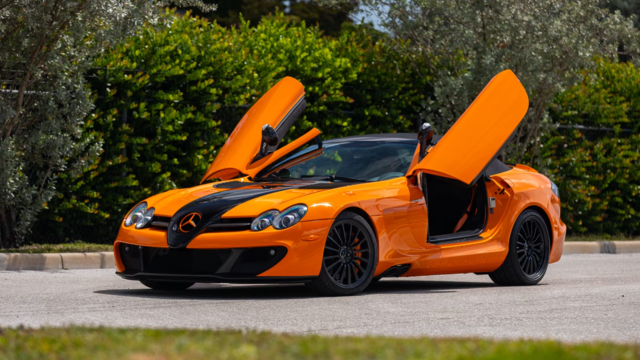
Mercedes SLR McLaren 722 S Is Extremely Rare Example Modified by McLaren
Slideshow: A one-of-one U.S.-spec Mercedes-Benz SLR McLaren Roadster became even rarer after a factory-backed transformation at McLaren's headquarters.