How can I rename a "favorite" destination to be something more meaningful (to me) than a street address? If I press and hold a "favorite" (or press the three dots to the right of it), I see a popup menu, but that menu has only two options: "Delete Entry", and "Delete All Entries". It's not obvious to me what I need to do in order to rename it.
How can I rename a "favorite" destination to be something more meaningful (to me) than a street address? If I press and hold a "favorite" (or press the three dots to the right of it), I see a popup menu, but that menu has only two options: "Delete Entry", and "Delete All Entries". It's not obvious to me what I need to do in order to rename it.
While it will be a long time before my EQE SUV is delivered, I know I most certainly would have had this question...so am very glad you asked! Will be following this one!
Off the top of my head but I think you can rename if you add the Favorite destination to your Starred Favorites Menu on the MBUX system. That is the only way I know how to do it.
OK, I was finally able to figure out how to rename a "Favorite" - but the process is very obscure (and illustrative of bad UI design).
When you save an address as a "Favorite", you'll briefly see a popup box that says "<address> Saved as Favorite". Then, and only then, click on that popup box, before it disappears. (If you've already saved the favorite, then you'll need to save it again, in order to get the "<address> Saved as Favorite" popup box.)
After clicking on that popup box, you'll see a display that shows your Favorites as square buttons. Press and hold the square button for the Favorite that you want to rename. You'll then see a dialog box that lists "Rename" as one of the options.
(Now, I wish the UI would order my list of Favorites by distance (depending on my current location) - so that nearby Favorites would show up at the start of the list.)
OK, I was finally able to figure out how to rename a "Favorite" - but the process is very obscure (and illustrative of bad UI design).
When you save an address as a "Favorite", you'll briefly see a popup box that says "<address> Saved as Favorite". Then, and only then, click on that popup box, before it disappears. (If you've already saved the favorite, then you'll need to save it again, in order to get the "<address> Saved as Favorite" popup box.)
After clicking on that popup box, you'll see a display that shows your Favorites as square buttons. Press and hold the square button for the Favorite that you want to rename. You'll then see a dialog box that lists "Rename" as one of the options.
Does this procedure still work for you, Finlayson? If yes, which version of MBUX are you on?
I am on E330... and unfortunately, I have not been able to get this to work. I am using Zero Layer on the hyperscreen.
Following the procedure, I get no square on the left side of the Favorites list when it comes up. Typically only an icon.
On the right side of the favorites list, I get the ... where I have the option to "delete entry" or "delete all entries" and nothing else.
Agree that the UI design is exceptionally poor!
Yes, this procedure still works for me. I don't know what version of MBUX I have, but it hasn't changed since I sent my earlier post.
Here, FYI, is the procedure once again (I've changed "click on" to "press", to be more relevant for a touchscreen display):
When you save an address as a "Favorite", you'll briefly see a popup box that says "<address> Saved as Favorite". Then, and only then, press that popup box, before it disappears. (If you've already saved the favorite, then you'll need to save it again, in order to get the "<address> Saved as Favorite" popup box.)
After pressing that popup box, you'll see a display that shows your Favorite as a square button. Press and hold the square button for the Favorite that you want to rename. You'll then see a dialog box that lists "Rename" as one of the options.
I think I am following your procedure precisely. Without luck. If you haven't updated MBUX since your first post on this topic, then I suspect my E330 version is newer than yours...and the upgrade came with reduced (botched?) functionality in this regard. Or, perhaps this feature is reserved only for those who shell out for an EQS?!
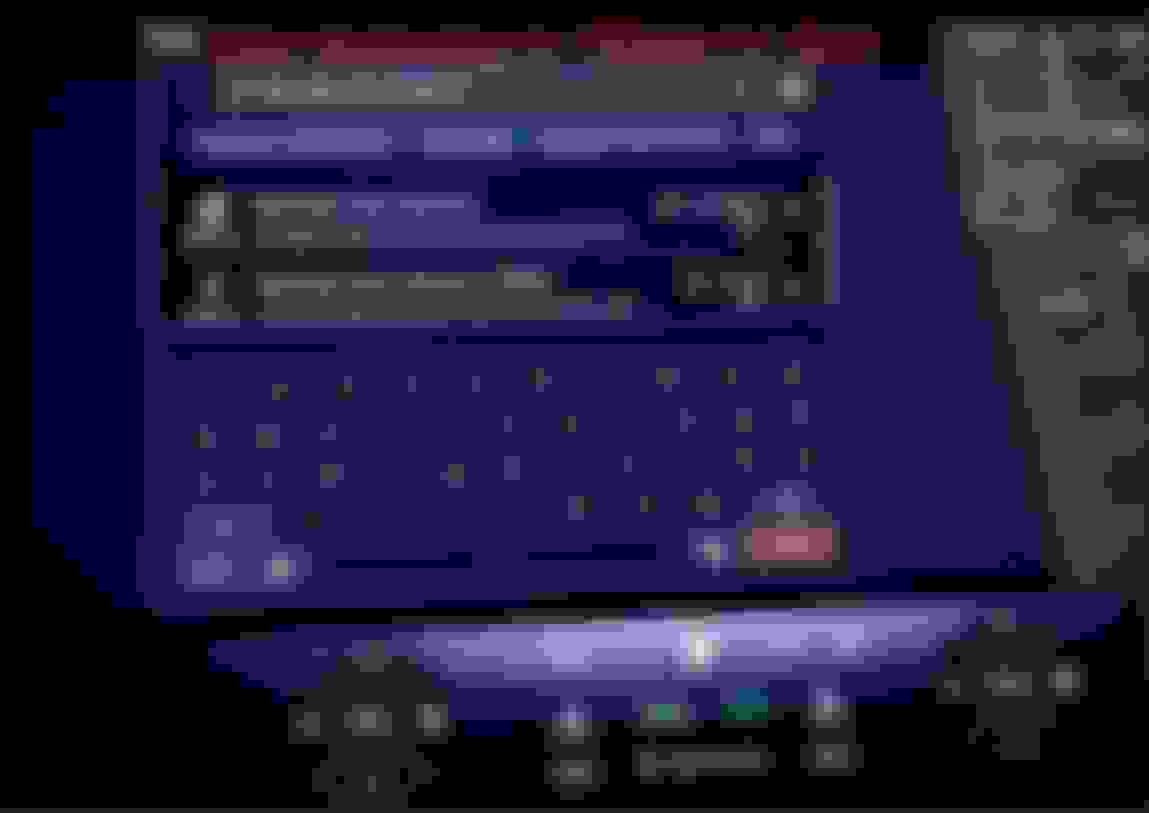
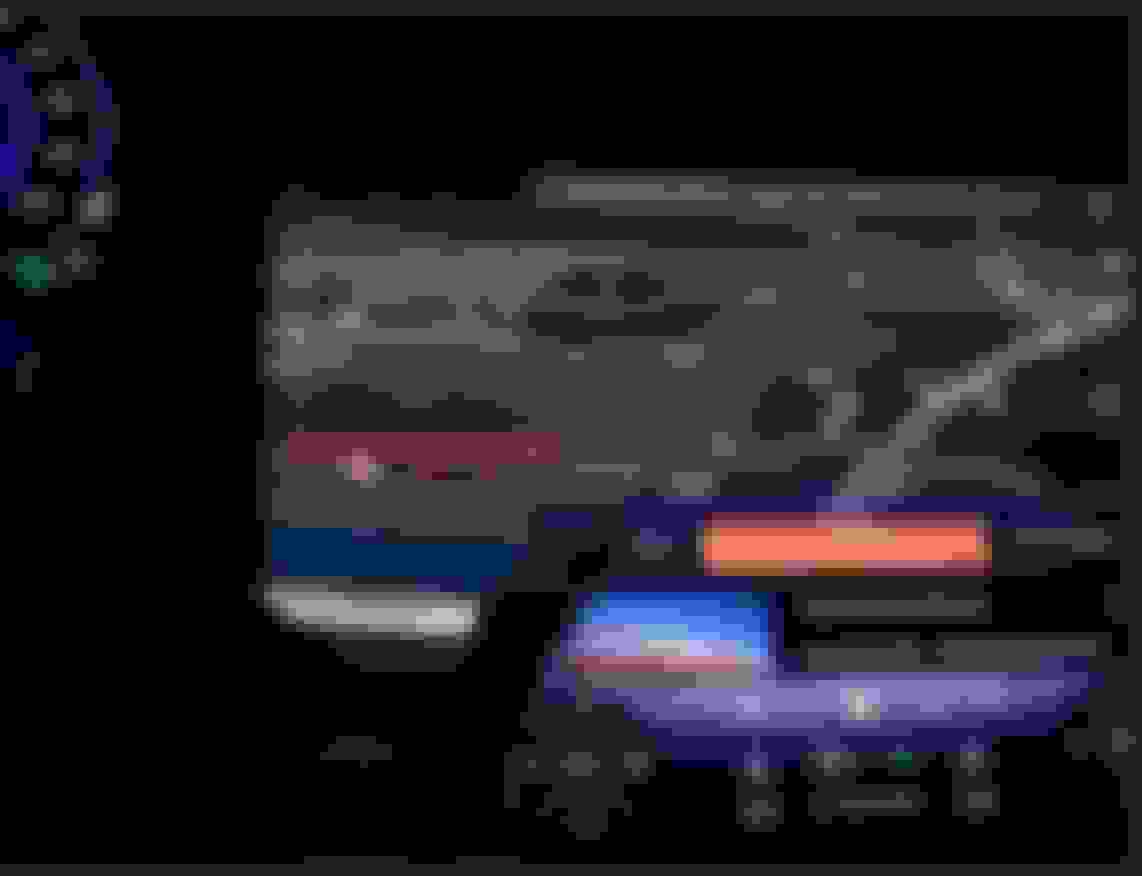
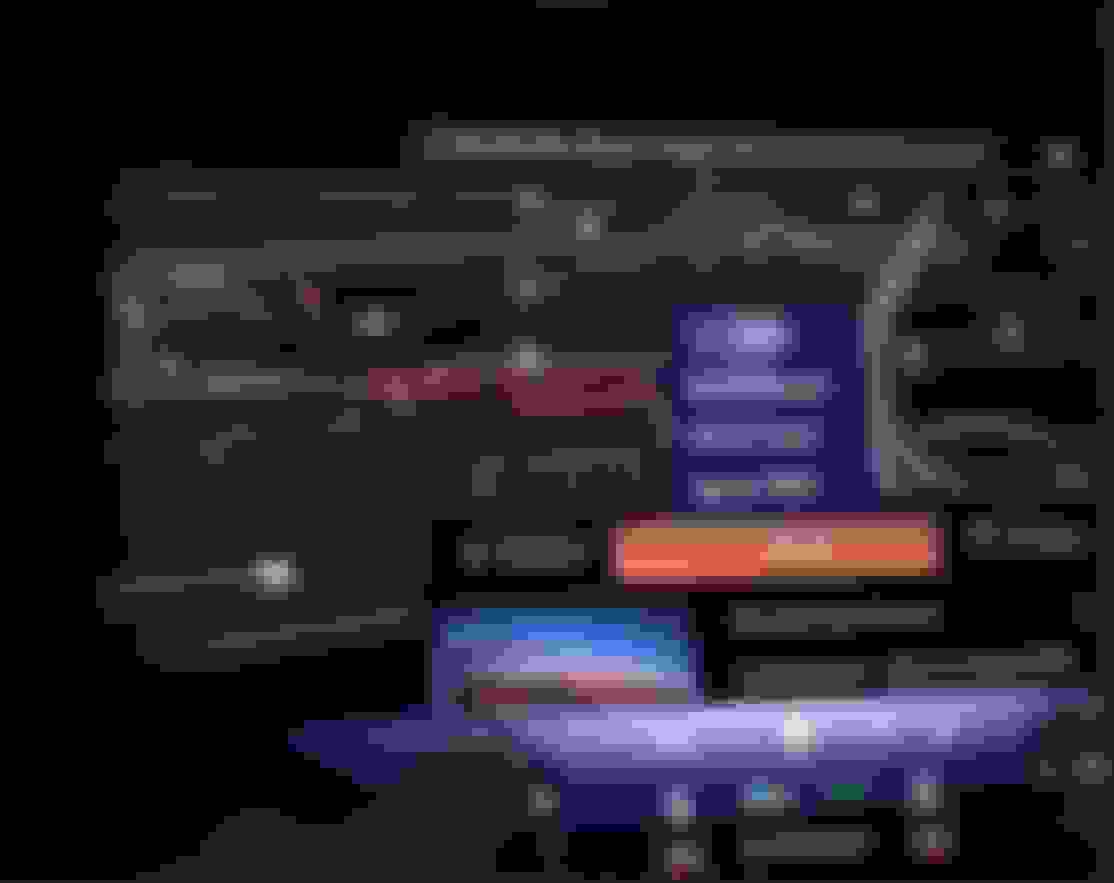
For clarity, I have pasted pictures of what I am doing below. Can you spot if I'm doing something wrong?
Use your Mercedes Me Connect app. Enter address and press Send to Vehicle. Press the edit icon on upper right then enter your desired info. Now send to vehicle.
Use your Mercedes Me Connect app. Enter address and press Send to Vehicle. Press the edit icon on upper right then enter your desired info. Now send to vehicle.
Thnx. Got that. Have always been able to do that.
What I really want to do is to be able to save a destination IN THE CAR in MBUX and name it as I wish. I don't want to have to use the MMe app while sitting in the car with everything in front of me on the MBUX screen.
It's so silly. I could name destinations as I wished on my GPS in my 2002 Volvo!!!
Thnx. Got that. Have always been able to do that.
I don't want to have to use the MMe app while sitting in the car with everything in front of me on the MBUX screen.
Well, I find it faster to check the tire pressure using the App than trying to do it in the car LOL.
You need to search for the destination on the Mercedes-Benz app and select “Send to Vehicle”. Before you send, you can edit the name. After you send it. You will see it in your “Received Destinations” on the car navigation. Select the three dots to the right of it and say “Add to Favorites” and it should save it with the name you provided.
You need to search for the destination on the Mercedes-Benz app and select “Send to Vehicle”. Before you send, you can edit the name. After you send it. You will see it in your “Received Destinations” on the car navigation. Select the three dots to the right of it and say “Add to Favorites” and it should save it with the name you provided.
This is a bit asinine but I found a way to do it.
You need to search for the destination on the Mercedes-Benz app and select “Send to Vehicle”. Before you send, you can edit the name. After you send it. You will see it in your “Received Destinations” on the car navigation. Select the three dots to the right of it and say “Add to Favorites” and it should save it with the name you provided.
PS: This is on NTG7 MBUX 2.
My post addresses this issue. You can save the custom named favorites in your MBUX. You just need to change the name in the app before you send it to your vehicle. Attached screenshots of the process.
On the Mercedes-Benz app, go to Navigation and search for the address you want to save in your Favorites. Once you find it. Select Send to Vehicle and rename before sending. The sent address shows up on your MBUX navigation. Select Save as Favorite Once saved, it shows with the new name that you provided on the app before you sent it.
Thank you. But the point I was trying to make in post #11 was that I want to be able to do this IN THE CAR and not have to fuss with the MMe app for naming saved destinations, which I already know how to do. I think this a very incomplete design on MB’s part, to put it kindly.
Thank you. But the point I was trying to make in post #11 was that I want to be able to do this IN THE CAR and not have to fuss with the MMe app for naming saved destinations, which I already know how to do. I think this a very incomplete design on MB’s part, to put it kindly.
Ah! Sorry, I misread that. Yes, its terrible UI design! But I am happy that there is at least a way to do it.
And after your post and re-reading #10, I realize this was the solution initially proposed
OK, I was finally able to figure out how to rename a "Favorite" - but the process is very obscure (and illustrative of bad UI design).
When you save an address as a "Favorite", you'll briefly see a popup box that says "<address> Saved as Favorite". Then, and only then, click on that popup box, before it disappears. (If you've already saved the favorite, then you'll need to save it again, in order to get the "<address> Saved as Favorite" popup box.)
After clicking on that popup box, you'll see a display that shows your Favorites as square buttons. Press and hold the square button for the Favorite that you want to rename. You'll then see a dialog box that lists "Rename" as one of the options.
(Now, I wish the UI would order my list of Favorites by distance (depending on my current location) - so that nearby Favorites would show up at the start of the list.)
This was super helpful, thanks for sharing.
If I may add, there is a favorites/star button on the “mousepad” (2021 GLS x167) - if you press it, you can get to the same favorites menu with the boxes you describe above.
How can I rename a "favorite" destination to be something more meaningful (to me) than a street address? If I press and hold a "favorite" (or press the three dots to the right of it), I see a popup menu, but that menu has only two options: "Delete Entry", and "Delete All Entries". It's not obvious to me what I need to do in order to rename it.
Quote:
Originally Posted by ScottC2
While it will be a long time before my EQE SUV is delivered, I know I most certainly would have had this question...so am very glad you asked! Will be following this one!
Alright, this thread is a perfect snapshot of why modern car software can be so infuriating. Everyone here has done solid detective work, and your conclusions are spot-on: the old method of renaming favorites is dead on the newer MBUX 2.0 systems (NTG7, software branch E32x and later), and using the Mercedes Me app is a clunky but functional workaround.
The problem is that everyone's thinking about it backwards.
You're trying to edit the "Favorite" after you've made it. In the world of MBUX 2.0, that's a read-only shortcut. It’s just a pointer. You can't edit the pointer; you have to edit the original file before you create the shortcut.
But here’s the real kicker, the detail that makes this feel impossible: the ability to edit that "original file" only works under specific conditions. This is the secret handshake.
The system makes a distinction between a proper name and a piece of raw data.
A Point of Interest (POI) like "Starbucks" is a locked proper noun.
A contact synced from your phone is also a locked entry.
A manually-entered address is just raw data.
The system will not let you edit a locked entry. This is why if you've been trying this on a POI or a contact, you've been hitting a brick wall. The function looked like it was gone, when it was merely conditional.
So, if you want to name your own destination, you must do it with a manually entered address.
Here's How To Actually Do It In The Car
Think of your "Previous Destinations" list as your workbench. It's the only place this can be done.
Feed It Raw Data: Manually type in the full street address. Don't select a POI or a contact. Just type it in and hit go, either by starting guidance or just letting it load on the map. This is the crucial first step to get an editable entry into the system.
Go to the Workbench: Navigate to Navi > Destination > Previous Destinations.
Find and Edit: Locate the street address you just typed in. Hit the three-dots next to it. Since you fed it raw data, you will now see the magic "Edit" button.
Name Your Target: Hit "Edit" and replace the street address with whatever you want—"Dr. Smith," "Client's Office," "That Great Taco Place." Save it.
Make it a Favorite: Now, hit the three-dots on your newly renamed entry in the "Previous Destinations" list and select "Save as Favorite."
Done.
And let's be honest, the frustration here is 100% justified. It's a masterclass in how to hide a simple, decade-old feature in plain sight. But the capability is there—you just have to understand the peculiar logic the engineers were working with.
Disregard my post! My apologies for that last clusterfluff.
Let's just say between the adult beverages and referencing the wrong MBUX version, the only numbers I'm qualified to read right now are the U.S. Open scores.
...and even that's suspect at this point.
My bad.
Slideshow: A one-of-one U.S.-spec Mercedes-Benz SLR McLaren Roadster became even rarer after a factory-backed transformation at McLaren's headquarters.