When you click on links to various merchants on this site and make a purchase, this can result in this site earning a commission. Affiliate programs and affiliations include, but are not limited to, the eBay Partner Network.
2013 ML350 Bluetec, 1966 Ford Mustang Convertible (sold)
I ordered the Road Top unit for my W166 ML350 about 2 years ago and it worked well with my iphone. I bought a new phone (Pixel 6 with Android) and it will connect to the Bluetooth no problem but when I try to connect to the wifi, they are asking for a password. Does anyone know what it is? They didn't ask for a wifi password when I had my iphone...
hi I have this problem in my roadtop box. When I turn on the indicator, the radio switches to a different view (as if the car thought I had a front camera). When the turn signal stops working, everything returns to its place. Let me add that carplay music works all the time. Link with my problem.
Hi firstly thanks for all the help on this post, it has been really helpful in installing something like this for the first time.
I have managed to get everything working including CarPlay and AirPlay but unfortunately no audio. I have tried all the suggestions configuring MOST, turning on Aux etc using the engineering menu but still no solution. I have ensured the optical cables have been transferred to the new harness and followed all the instructions on selecting aux on the audio input.
Can anyone help to suggest a solution as the audio is the only remaining issue to complete the installation? Thanks in advance for any help you can offer
Were you successful here eventually?
on my W212 E550, I can’t get the Aux to provide any audio even though it now shows up. I don’t think Aux works with even a regular analog audio connection as originally intended either. I’d love any ideas!
on my W212 E550, I can’t get the Aux to provide any audio even though it now shows up. I don’t think Aux works with even a regular analog audio connection as originally intended either. I’d love any ideas!
I was able to play audio by enabling AUX, and selecting “external amplifier” in the engineering mode settings.
The Road Top kit works but I couldn’t get the radio to fit
Originally Posted by BillWoeb
I was able to play audio by enabling AUX, and selecting “external amplifier” in the engineering mode settings.
I have the Road Top kit and
I tested it out with the radio partially inserted in the instrument panel and it works perfect!
BUT
I tried for 4 hours to make the radio seat all the way back in its location with no luck. The new harness has the large connector (which goes between the radio and the OEM harness) and I just can’t find room nor fit my hands to move it to a suitable location.
If anyone has ideas or is close to lower Michigan I will gladly pay you to finish what I cannot!!!
I realize this is an E class thread, but it’s the best one on this topic so I have subscribed here. In my 2013 GL 450 X166 I had the same frustration trying to fit the unit behind the radio. I instead placed it on the top shelf in the glove box.
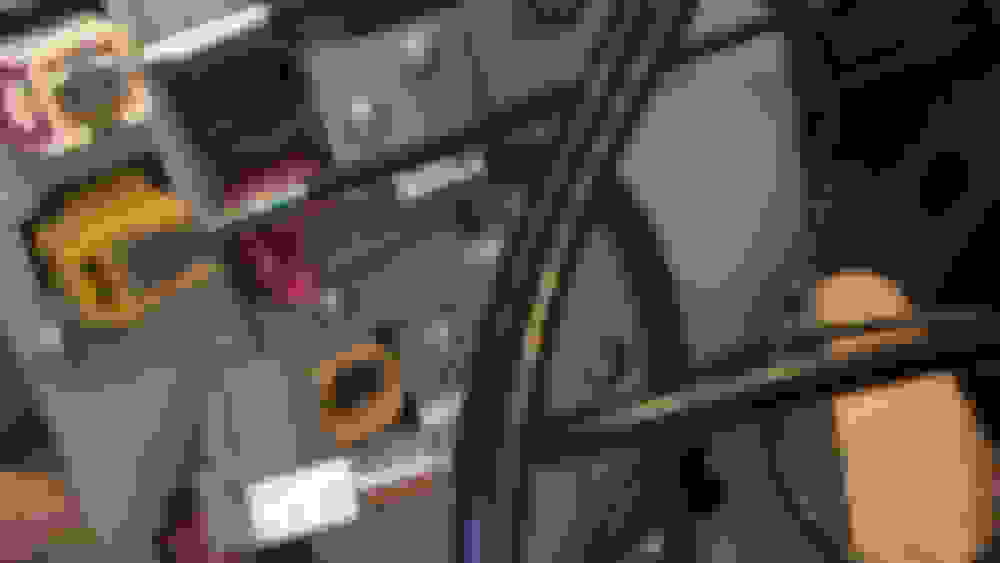
There was an obvious spot on the left side of the glove box wall where I drilled a 1.5 or 2” hole. It was easy to snake the harness up through the hole and the box is simply sitting on the shelf. It appears from your photo that the E class does not have the same shelf, but perhaps you could either have it sit in the glove box, or mount it to the top of the box with straps. Good luck.
I realize this is an E class thread, but it’s the best one on this topic so I have subscribed here. In my 2013 GL 450 X166 I had the same frustration trying to fit the unit behind the radio. I instead placed it on the top shelf in the glove box.
There was an obvious spot on the left side of the glove box wall where I drilled a 1.5 or 2” hole. It was easy to snake the harness up through the hole and the box is simply sitting on the shelf. It appears from your photo that the E class does not have the same shelf, but perhaps you could either have it sit in the glove box, or mount it to the top of the box with straps. Good luck.
Thank you for the quick reply. My issue isn’t with where to put the encoder - it’s where to put the new power harness (with big black connectors). It just won’t fit behind the radio, unless I am really not seeing something (most likely!!)
2012 E550 Cabriolet 2011 VW Eos 1985 Pininfarina Spider
Originally Posted by BillWoeb
Thank you for the quick reply. My issue isn’t with where to put the encoder - it’s where to put the new power harness (with big black connectors). It just won’t fit behind the radio, unless I am really not seeing something (most likely!!)
It took me several days to find a place for the harness. I believe I ended up stuffing it to the back, down and to the left.
2012 E550 Cabriolet 2011 VW Eos 1985 Pininfarina Spider
Originally Posted by BillWoeb
Thank you for the quick reply. My issue isn’t with where to put the encoder - it’s where to put the new power harness (with big black connectors). It just won’t fit behind the radio, unless I am really not seeing something (most likely!!)
It took me several days to find a place for the harness. I believe I ended up stuffing it to the back, down and to the left. I think I had remove some insulation to make it work.
Now that the dash is opened up, it's time slide out the Comand unit.
1) Place a soft towel on the center console for protection
2) Remove the 2 T20 screws on the top of the Comand unit
3) Carefully start to slide the Command unit out until you can see the small wire harness attached on the right side. Disconnect the harness.
4) Slide the Command unit all the way out. Once out, I found that rotating the unit 90-180 degrees made the harnesses in the back easier to remove.
5) Remove both the MAIN (large black) harness and the blue LVDS (video) cable from the rear of the Comand unit.
6) Plug the blue Joyeauto LVDS IN cable into the back of the Comand unit (There are two LVDS cables, it's the one with a 90 degree connection)
7) Remove the optical cables from the MB harness. Be VERY CAREFUL with these optical cables. Do not bend or force them at any time as they can break. I found that I had to strip away a few inches of the wrap around the MB wire harness bundle to free the optical cables.
8) Plug the large black MB harness into one end of the Joyeauto harness
9) Attach the Joyeauto power cable to the Joyeauto harness
10) Plug the other end of the black Joyeauto harness into the Comand unit
11) Plug the optical cables into the rear of the new Joyeauto harness at the rear of the Comand unit
12) Attach one end of the Joyeauto audio cable to the Joyeauto harness AUX IN
13) Attach the Joyeauto LVDS out cable to the MB blue monitor cable
14) Fish all the above cables that will attach to the main Joyeauto unit behind and to the right inside the dashboard as necessary making room to reinstall the Comand unit. Since I was going to install the unit in the glove box, I positioned them in that direction around the interior components of the dash.
15) Now we will slowly start to put the Comand back in place. Even with all the new cables moved out of position, it will be VERY DIFFICULT to get the Comand unit to fit back due to the new harness. It will take some trial and error, but CAREFULLY move the wiring harness to a least bad location while ensuring that everything remains connected. I found success with the large black harness connector forward, up, and toward the driver side. YMMV.
16) Before sliding the Comand unit all the way back in, reattach the small harness on the right side
17) Once the Comand unit is back in place, install the two T20 screws. Whew!
Hi. Any suggestion from where I can buy NTG4 RSE 1 cable for external monitor preferably with rca video output? Thanks in advance, guys!
It took me several days to find a place for the harness. I believe I ended up stuffing it to the back, down and to the left. I think I had remove some insulation to make it work.
This is effectively what I did. For that reason alone, I hope that I don't have to ever remove/reinstall this again. This unit has radically improved and modernized my car and I hope that it or its cabling never breaks.
Hi I am looking to install android auto on my w212 facelift. I want to be able to connect to it via android wirelessly and have 360 camera activated once I shift to park. After talking to sellers these products "satisfy" my needs: https://www.alibaba.com/product-deta...196986908.html (seems like roadtop box) https://www.aliexpress.com/item/4000656837413.html actual roadtop unit https://www.alibaba.com/product-deta...227390938.html I couldn't find about this company but they're standing behind their product and give me warranty on it.
To people who have use android. Which should I go for? Which have best integration with built in 360 camera?
P.S I am going to have it installed by a professional.
Hi, I installed roadtop unit connected aux grond to ground and all that but sound has static in it and is very bad quality. Has anyone experienced it before?
If anyone looking to update firmware of roadtop device here you go:
System forced upgrade:
1. download the file,Find an 8G USB flash drive and format it in FAT32 format, Unzip the file and copy the upgrade files "GEMINI_PACK.BIN" and "recovery111#" to the root directory of the U disk, not in the folder
2. Insert the U disk into the USB port of the decoder
3. Within 10 seconds after the car is powered on, immediately long press the "C" button for 5-8 seconds and then let go (within 10 seconds after the car is powered on, you must long press the C button. If it exceeds 10 seconds, you cannot enter the forced upgrade by long pressing the C button)
4. The entire upgrade process needs to wait three and a half minutes
I will update it once I have it time and post results
Hi all, I've installed one of the newer boxes Limcet box, installed all good but audio only comes left hand side oft he car. At first I thought that Ive broken the fiber optic cable, however when playing original car radio it works throughout all speakers in the car, any ideas what it could be? I guess I would have to move HU and check connections again just want to have an ide at what I should be looking at. Thanks
Hi, I installed roadtop unit connected aux grond to ground and all that but sound has static in it and is very bad quality. Has anyone experienced it before?
It sounds like the ground wire isnt grounded properly, is it connected to a non-painted bolt or chassis? I stripped the paint off 1 off the bolts in the centre console and connected to that and it runs fine. Before I took the paint off the bolt I had a similar issue with a lot of static and low audio volume so I'm pretty sure your ground wire isnt grounded properly.
It sounds like the ground wire isnt grounded properly, is it connected to a non-painted bolt or chassis? I stripped the paint off 1 off the bolts in the centre console and connected to that and it runs fine. Before I took the paint off the bolt I had a similar issue with a lot of static and low audio volume so I'm pretty sure your ground wire isnt grounded properly.
I have it grounded to a cable which comes off harness that connects to head unit. I tried grounding to a chassis and had same issue. I got ground loop isolator and installed it between aux and aux adapter. It works good enough that I have to turn up volume to max(which I rarely do lol, its very loud) to have static.
2015 SL400 (M276 Turbo), 2014 C350 Sport (M276 NA), 2004 SL500 (M113), 2004 Audi TT225 (BEA)
Originally Posted by Navrozashvele
If anyone looking to update firmware of roadtop device here you go:
System forced upgrade:
1. download the file,Find an 8G USB flash drive and format it in FAT32 format, Unzip the file and copy the upgrade files "GEMINI_PACK.BIN" and "recovery111#" to the root directory of the U disk, not in the folder
2. Insert the U disk into the USB port of the decoder
3. Within 10 seconds after the car is powered on, immediately long press the "C" button for 5-8 seconds and then let go (within 10 seconds after the car is powered on, you must long press the C button. If it exceeds 10 seconds, you cannot enter the forced upgrade by long pressing the C button)
4. The entire upgrade process needs to wait three and a half minutes
I will update it once I have it time and post results
What version is the firmware update? What problems is it supposed to fix?
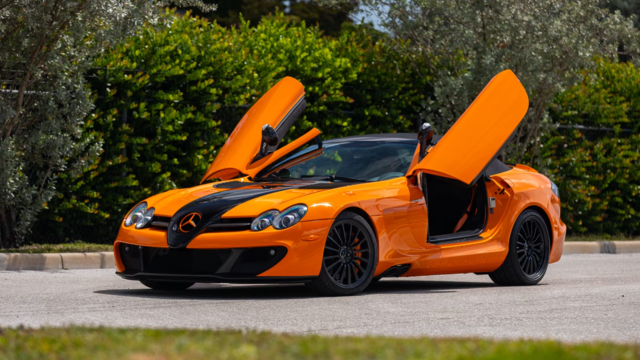
Mercedes SLR McLaren 722 S Is Extremely Rare Example Modified by McLaren
Slideshow: A one-of-one U.S.-spec Mercedes-Benz SLR McLaren Roadster became even rarer after a factory-backed transformation at McLaren's headquarters.